How to use “Program Edit” feature in PlanetCNC TNG software

Sometimes our NC program does not perform quite as we plan. Many times just a small correction of g-code does the trick and for this we need to edit our NC program.
For this purpose you can use built-in “Edit” feature.

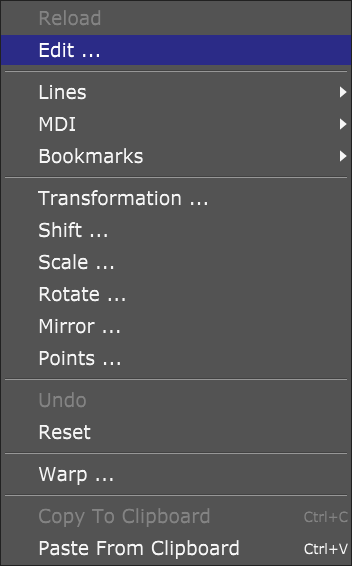
Edit feature is located under Program menu.


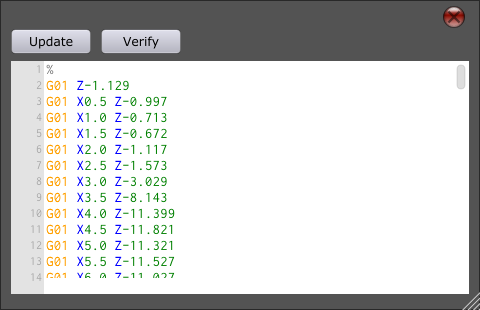
When Edit feature is active, window is opened with currently imported g-code:


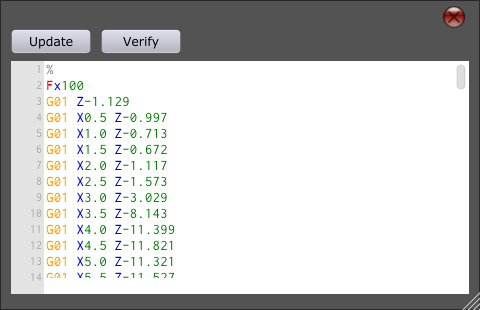
You can directly edit your g-code within the “Edit” window:


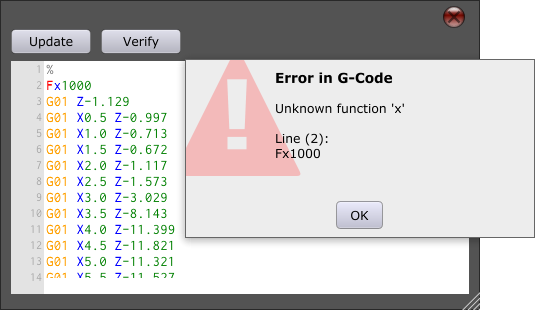
With “Verify” button you verify edited g-code in case of any errors. If error is located, message is displayed with error description and number of program line that causes error:


With “Update” button edited g-code is loaded into g-code window.

How to set speed and acceleration values in PlanetCNC TNG software

One of the most important steps when setting up your machine in PlanetCNC TNG software is configuring machines max speed and acceleration values.

With speed and acceleration values that are not suitable for one’s machine, user risks lost steps(stepper motor) or increased torque(servo motor), damaged work-pieces, broken machine and most important, lost time.

To obtain machines max speed and acceleration values, user should put his machine trough various tests. This way user will learn motion capabilities and limitations of his CNC machine.

With machine max values correctly set, user can be rest assured that his machine will perform safely within its limitations, achieving best results.

Speed and acceleration settings

Same as we cannot achieve blistering accelerations and record high speeds with a family car, we also cannot expect miracles with small desktop CNC machine.

While the main limitation of a car is usually its engine and chassis, CNC machine’s rigidness and motion capabilities base on its axis motor drives, mechanics and frame.

Machine motion consists of single motor motion(single axis movements) and combined motor motion (combined axis movements – e.g. circular motion).

User would need to obtain max speed and acceleration values for both types of working conditions, single motor motion as also combined motor motion.

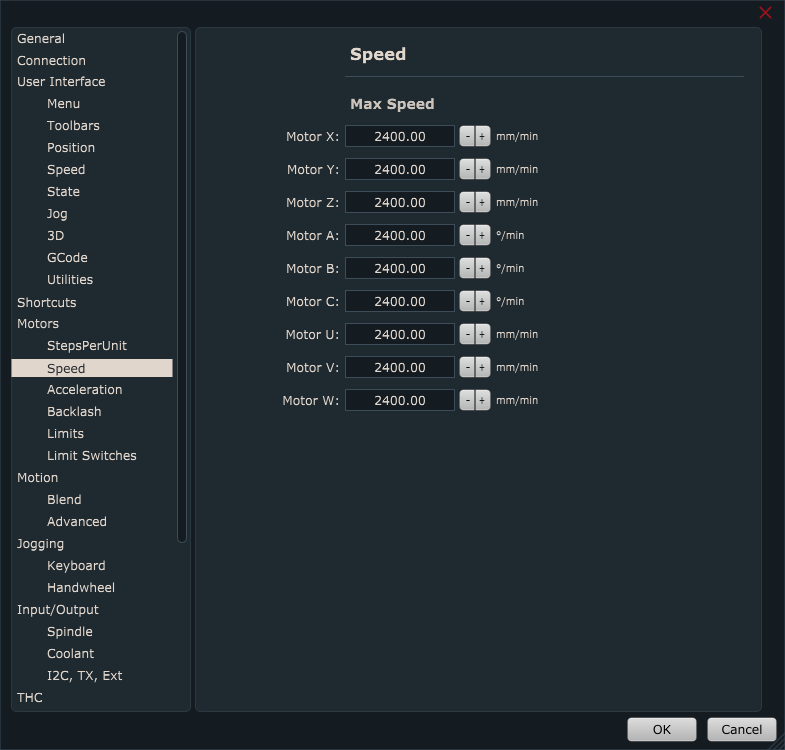
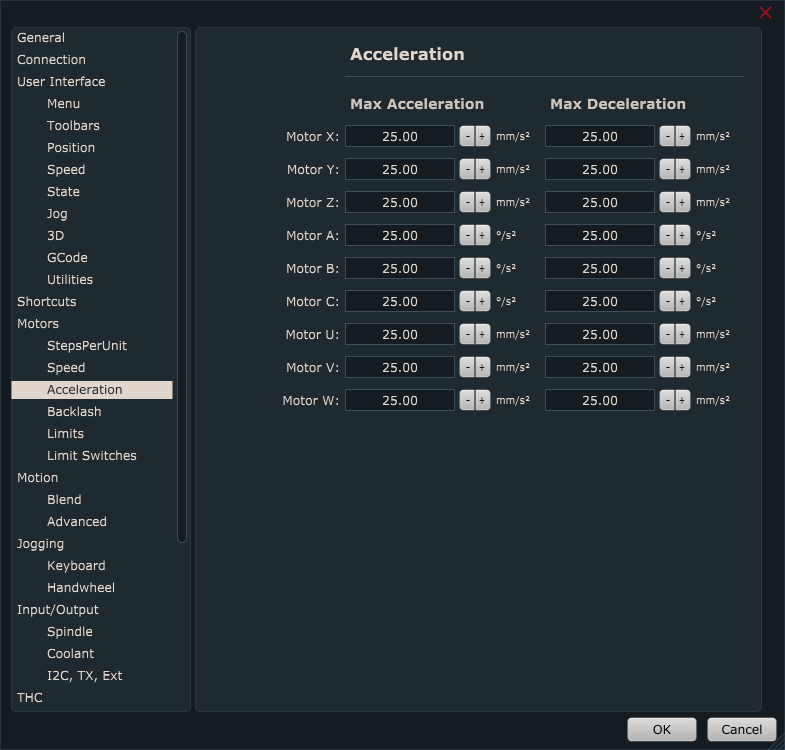
Single motor speed and acceleration settings are set under:

File/Settings/Motors/Speed  & Acceleration:

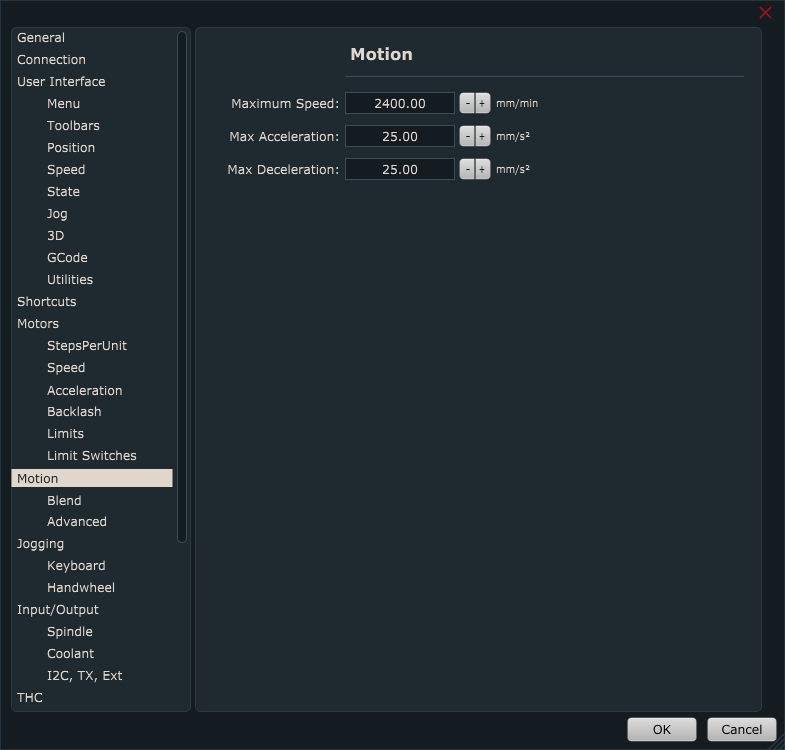
Combined motor speed and acceleration settings are set under:

File/Settings/Motion → Set Maximum Speed and Max Acceleration and Deceleration:

For standard 3 axis linear CNC machines, speed and acceleration values under Motors/Speed & Acceleration and Motion/ Speed & Acceleration are are usually the same.

Machine tests

Motion tests will help with approximation of suitable max speed and acceleration values of your machine. Like mentioned earlier, you would need to perform tests for both, single as also combined motor motion of X,Y and Z axes.

Z axis motion is little more specific than XY axis motion, since Z axis usually carries spindle motor which represents constant load on the Z axis motor. With motion such as hole array drilling and PCB hole drilling we can test Z axis motion capabilities.

It is recommended that some of these tests are performed also while machine is actually cutting/machining.

When machine cuts trough material, motors need to maintain speeds and accelerations while also dealing with resistance from material. Tests performed under these conditions can affect final max speed and acceleration values.

Prior performing tests with your CNC machine, we would recommend that you follow this tutorial: Adding user commands. This tutorial will guide you on how to add user command programs into PlanetCNC TNG. User command programs used in tutorial will be used as machine test programs.

Single axis speed and acceleration test

For this test you will move each axis independently in both directions. Start with default setting values, which are Speed = 2500 [mm/min] and Acceleration = 25[mm/s2].

You can start with X axis, then Y axis and as last Z axis.

To move each axis you can use jogging keys or you can write short g-code program which would move each axis in desired distances and directions.

Trough out the test, configure Speed and Acceleration setting values depending on the given results of each test. If results indicate that axis could handle higher values, increase them, and if motor looses steps, lower these values. Please note that any unusual noises, vibrations, machine frame movements also indicate unsuited speed and acceleration values.

Hint: While acceleration values can be configured only via settings, you can set different speeds for testing by using JOG speed window. Double click on the value and insert new one.

Note that max jog speed is limited with max motor and motion speed values from settings.

Speed and Acceleration values that will be obtained with this test should be used for all further tests.

Combined axis speed and acceleration tests

Machine will use combined axis motion to perform these tests.

Rounded Square test

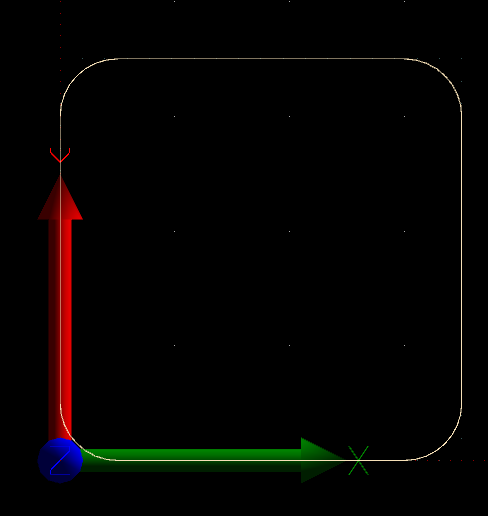
For this test you will use “Round Square” user command. This feature generates toolpath program for square with round corners. Machine will perform round corners using combined axis motion, which is perfect for our test.

This test can be compared to a car cornering on a race track. If car gets thrown out of the track when passing trough corner, then it is safe to say that car speed was too high. If your machine will loose steps or motors will stall when traveling trough round corners, then set speed was too high.

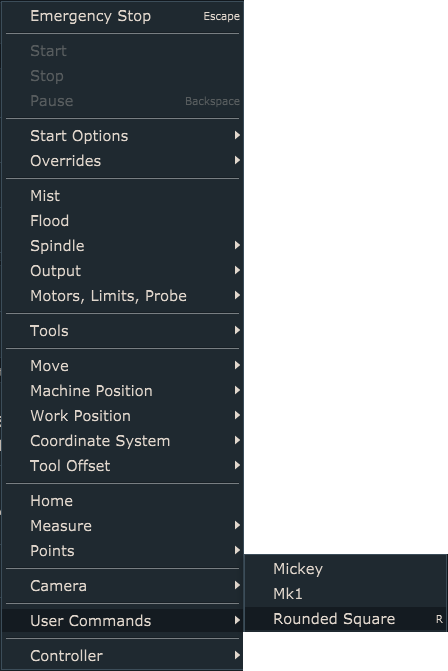
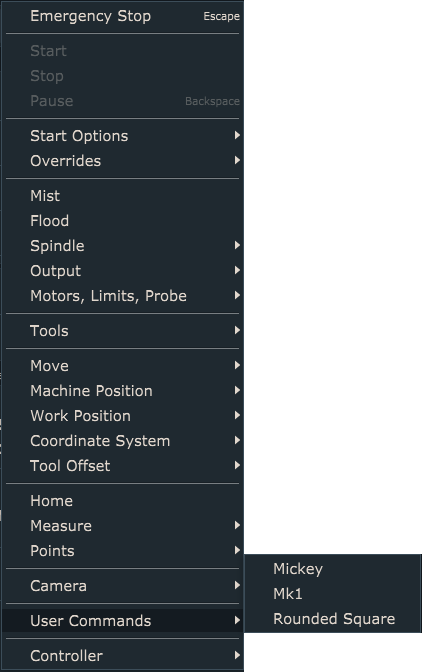
Under Machine/User Commands, locate Rounded Square option and start it:

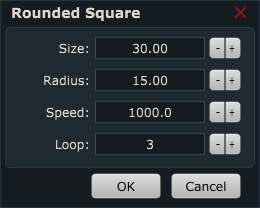
Displayed dialog offers you to insert values for Size, Radius, Speed and Loop:

Size: Size of square sides. This value should be high enough so that machine can achieve max speed over each square side.

Radius: Equation offers you to calculate minimum radius that your machine will still be able to travel without lowering its speed, thus obtaining constant speed trough out the whole toolpath. Values for speed and acceleration (v and a) are those that we obtained with single axis test.

Speed: Max speed, speed value obtained with single axis speed and acceleration test.

Loop: Number of times machine will execute this square toolpath. Multiple executions of this toolpath program back to back can help with better observation of machine motion.

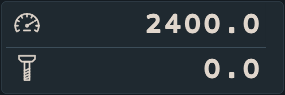
Click OK to start execution of square program and under speed dial observe if machine speed will change at any point:

If your machine performs this square toolpath with constant speed and without any problems, this indicates that your single axis max speed and acceleration values are suitable for your machine.

Mickey test

This g-code program uses motion which makes for a great test of combined axis motion.

Since this program does not use F-word command it would be best to set it under File/Settings/Program Options → Feed Speed (Use max speed value obtained with single axis speed and acceleration test.)

Under Machine/User Commands, locate Mickey option and start it:

NC drill test

Hole array drilling and PCB drilling are great examples of Z axis motion where you can test your Z axis capabilities. Like mentioned earlier, Z axis motor needs to maintain position while also carrying spindle motors weight. With rapid and continuous Z axis motion, inertia can cause for Z axis motor to loose steps.

For this test, your machine should perform NC drill program file where machine drills lots of holes. Perform this test at max speed and acceleration values obtained with single axis speed and acceleration test.

Under Machine/User Commands, locate Mk1 option and start it:

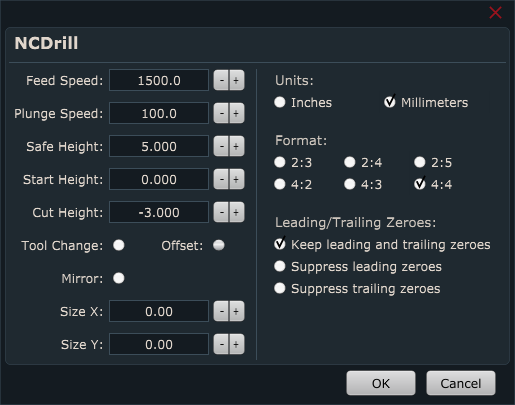
For Feed Speed and Plunge Speed set max speed value obtained with single axis speed and acceleration test.

If lost steps or any other motion error occurs during these tests, you would need to lower max axis motor speed and acceleration values and repeat single axis speed and acceleration tests again. Then use new max values with combined axis speed and acceleration tests.

Accessing script files in PlanetCNC TNG software

One of the most useful tools of PlanetCNC TNG software are its script files.
PlanetCNC TNG software offers numerous program features that allow flexible and fluent work flow when operating a CNC machine.

To name a few of the most common ones: Work position/Measure Height, Tool Offset/Measure Length, Tool change procedure, Homing procedure and the list goes on.

Each of these features have its own dedicated gcode program that dictates their machine and program behaviour. Such gcode program is called script file. So, most of the toolbar buttons, custom buttons, user commands, Machine menu items etc.. has its own dedicated script file that is available for observation, editing or configuration.

Script files can be accessed in three different ways:

-Via settings (File/Settings/Program Options/Scripts)
-Using combination of PC keyboard keys Ctrl + Alt and Left mouse button
-Directly accessing script files in Scripts folder


Accessing script file via Settings

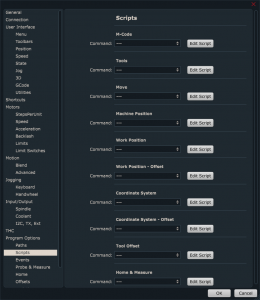
In PlanetCNC TNG sw click File/Settings/Program Options/Scripts:

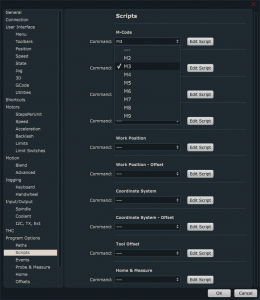
All program features that are available for configuration, observation and editing are listed here, categorized based on their functionality. So if you would like to change script code for spindle control, M3 code, click M-code category and select M3 from the drop down list. Then click button Edit Script:

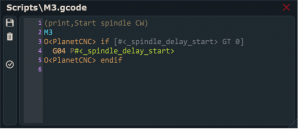
Script code will open in PlanetCNC TNG native gcode editor:


Accessing script files using short keys

Third, and probably the fastest way of accessing script files is using combination of PC keyboard keys Ctrl + Alt + Left mouse button.
All you need to do is press combination of Ctrl + Alt keys and with left mouse button click on desired program feature(this can be Machine menu item or toolbar button or any other scriptable feature). Script file will open in gcode text editor.


Directly accessing script files in Scripts folder

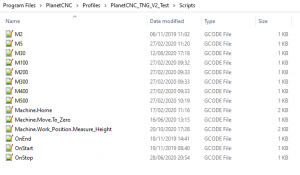
To access script file in script folder, open your PlanetCNC TNG installation folder, locate and open your profile folder and open Scripts folder.
Maybe you will notice that script file that you would like to use is not present in the folder. In such case, you would need to access script file using either settings approach or short key approach (described above). Once you managed to open script file in gcode editor, click Save button (diskette symbol) and script file will appear in the Script folder.


Obtaining default script gcode

It is very important that user understands that there is no fear or danger of losing default script gcode. Default script code is always reversible/obtainable.
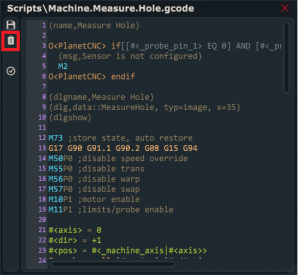
In order to do this, user clicks the trash bin button:

This button will restore scripts default gcode. You can modify script code, delete parts of it, delete all the code, with this button, default script code will be restored in its entirety.

Example:

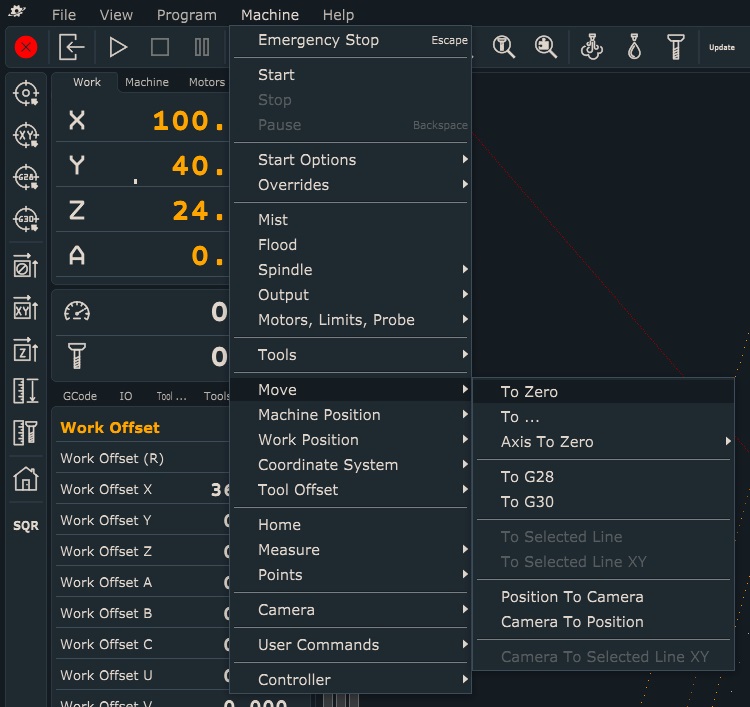
For this example we will configure script for program feature: Machine/Move/To Zero. To access  script code, we will use short keys approach.

We will change the default script gcode and then set it back to default.

1. Access script code of program feature: Machine/Move/To Zero


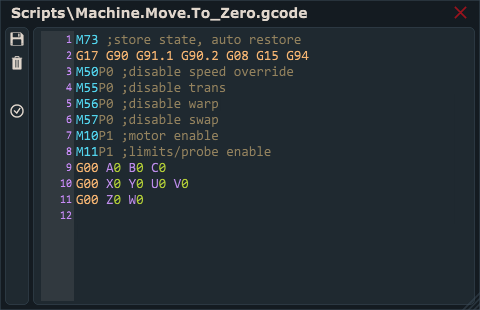
Use shortkeys Ctrl+Alt+Left mouse button to open script code in TNG gcode editor:

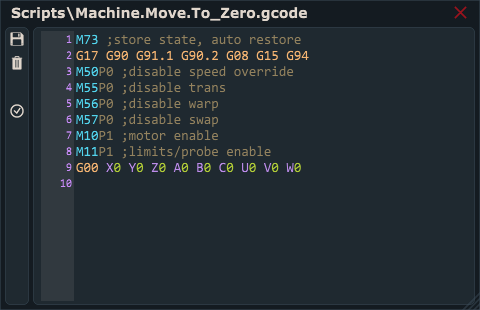
We can see that default script code moves all 9 axes at the same time.

No we will change default script code so that axes ABC will move to zero first, axes XYUV second and axes ZW last:

Click Save button (diskette symbol) to save newly configured script gcode.

In order to obtain default script code back, you click the trash bin button and default code will appear. Click save button in order to save default script code.


How to create new profile in PlanetCNC TNG software

This tutorial will help you create new profile in PlanetCNC TNG software.

If you have multiple CNC machines (machines of different dimensions, different types) with its corresponding controllers, and you want to use them with only one computer, it is very useful to create separate profiles.

Using profiles makes up for much more organised and transparent file management of PlanetCNC TNG files.

Each profile will have its designated files (among others) for:

  • Settings
  • Keys
  • Parameters
  • Toolbar buttons
  • State files
  • Scripts
  • Tool table
  • Icons
  • User command and user generated files


Creating new profile folder

Open PlanetCNC TNG installation folder and locate Profiles folder.  At a fresh start, only Default folder will be present.

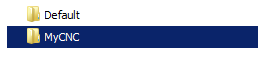
Copy/Paste Default folder and rename it. In this tutorial we will name it MyCNC:

At this point, all files of Default and MyCNC profile folder are the same.


Creating new shortcut

Right-click with your mouse somewhere on desktop and select New -> Shortcut

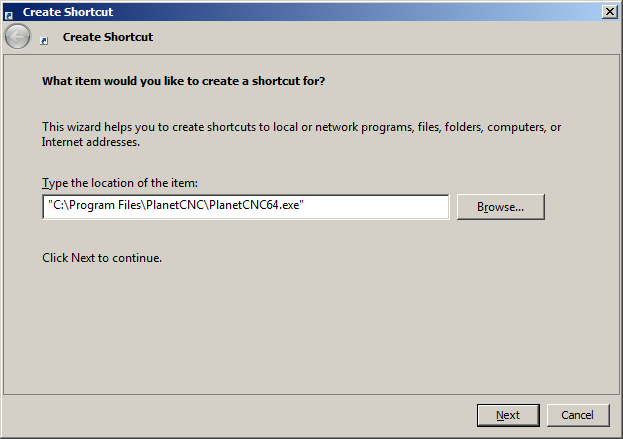
Browse location of PlanetCNC TNG.exe file and click Next:

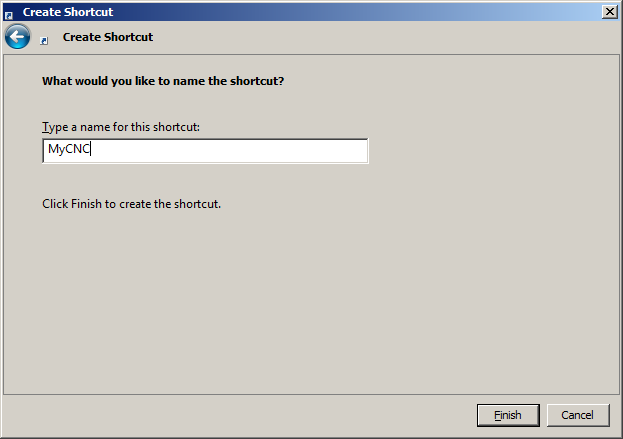
Name your shortcut, (it would make sense to name it the same as our new profile foder, MyCNC) and click Finish:

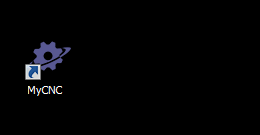
New shortcut for PlanetCNC TNG software will appear on desktop:


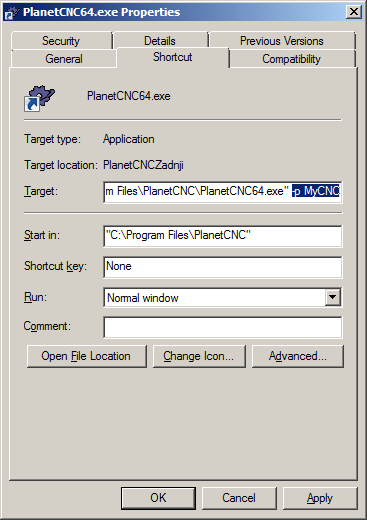
Right click on newly created shortcut and click Properties. Under Target insert window, after the application installation path, add text: “-p <profile name>“.

“-p<profile name>” does not need to be a name of an already existing profile. You can add desired name and TNG will create new default profile folder with inserted name. 

Click Apply and OK. Now this application shortcut is linked to all files of profile named MyCNC.

Start PlanetCNC TNG sw via newly created shortcut. All changes in settings or configuration of PlanetCNC TNG system files will affect only MyCNC profile.


How to setup CNC machine in PlanetCNC TNG software

Follow these tutorials to setup your CNC machine:

1.) How to set step per unit values in PlanetCNC TNG software

2.)How to configure limit switch inputs of controller in PlanetCNC TNG software

3.)How to set motor & soft limits in PlanetCNC TNG software

4.)How to set homing procedure in PlanetCNC TNG software

5.)How to measure tool offset with fixed tool sensor in PlanetCNC TNG software

6.) How to measure work position with movable sensor in PlanetCNC TNG software

7.) Tool change settings in PlanetCNC TNG software

8.) How to set speed and acceleration values in PlanetCNC TNG software


Certificate Import

License activation depends heavily on digital signatures.

Validity of digital signatures depends on trust. On some computers trusted root certificates are missing, specially on older PC’s or when auto-updates are turned off.

If you are facing problems because of this, it is essential that you install trusted root certificates.

Please download this .zip file and extract it: Certificate files
Archive includes certificate files that you would need to install on your computer.

Please perform steps below for all included certificates:

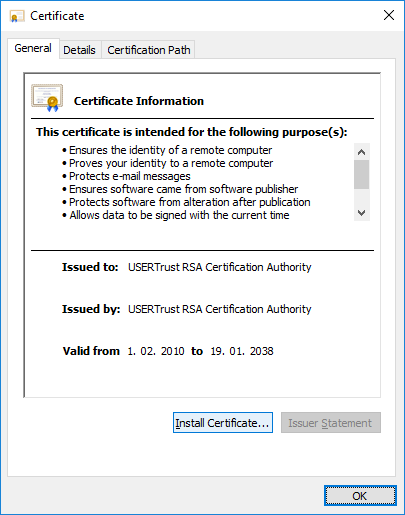
1. Double click on the certificate and click “Install Certificate”:

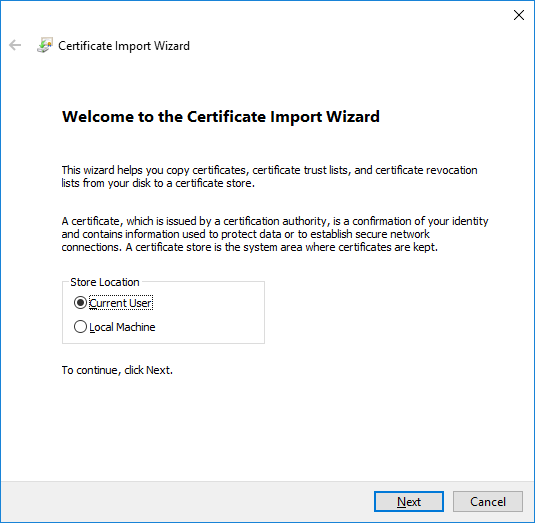
2. Select “Current User” and click “Next” button:

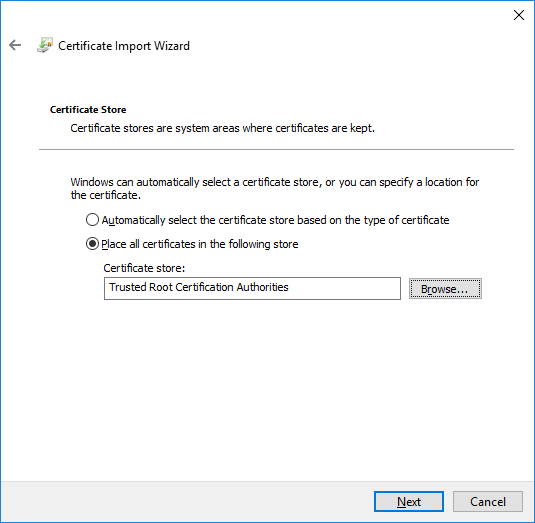
3. Select “Place all certificates in the following store” option and click “Browse”:

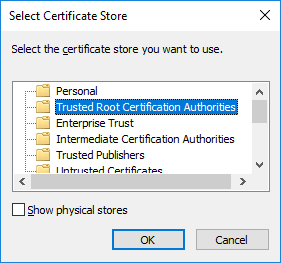
Make sure that “Trusted root certification Authorities” folder is selected and click “OK”:

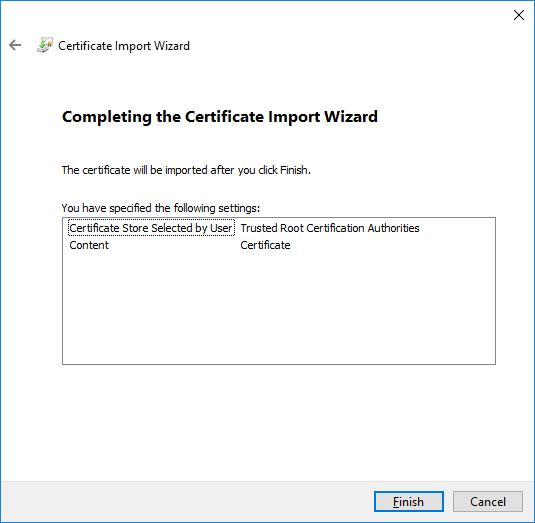
4. Click “Finish” to import certificate:

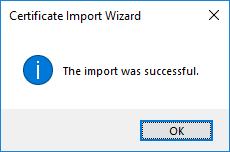
System should confirm that importation was successful:

Adding user commands in PlanetCNC TNG software

User can add user commands to PlanetCNC TNG software. Examples of such are various frequently used machining programs, various measuring procedures or any other machine motion sequences that help user with workpiece or machine setup before starting machining process.

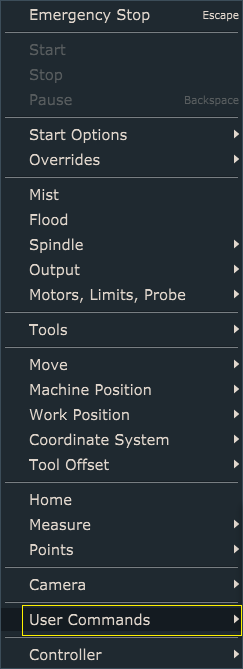
User commands are accessible trough Machine/User Commands menu:

In order that program appears as User Command menu item, further steps need to be performed:

1.) Access your PlanetCNC  install folder and locate Profiles folder. Open desired profile folder and locate folder UserCmd.

2.) Include your desired program file into UserCmd folder.


As an example, we will add program files located in Samples folder of PlanetCNC installation folder.

-Locate Samples folder in your PlanetCNC installation folder.

-Locate and copy files Mickey.nc, SquareRoundedDlg.nc and Mk1.ncd and paste them into UserCmd folder.

-Start PlanetCNC TNG sw and click: Machine/User Commands. Files are now visible as User Commands menu items:

User can also execute these custom features via custom buttons: Custom buttons in PlanetCNC TNG


To add any additional user command program into PlanetCNC TNG software, please follow steps above.

Guidelines when submitting your problem to PlanetCNC support

Some users face an obstacle during their time learning and using PlanetCNC software.
While we always try to give fast and effective support, sometimes we need more info about the problem user is facing in order to come up with solution as fast as possible.

So when you post e-mail or ticket regarding your problem we ask you to provide the following:

1. Clear and in-depth description of your problem.
Please use English language if possible. Please understand that you know your machine and we don’t.

2. Attach files:
.settings(File/Export Settings)
.gcode (.dxf, .gerber)
.Scripts folder (zipped)
.var(located in your installation folder)
log text (Menu Help/Show Log then copy/paste)
.tbl(located in your installation folder)
.keys(located in your installation folder)
.state(State 1-5)
.btn(.btnbottom, .btnleft, .btnright, .btntop)
.script

3. Past experience has shown that video recordings can be very helpful.
Sometimes things do not go smoothly and error occurs during machine operation. In such case it is best to post two video files:

a.) Video of your machine during operation. Video should show machine operation and the exact moment when it comes to an error.
b.) Video of complete PlanetCNC sw user interface during the machine operation mentioned in point a.

This way we can compare both videos and see if anything unusual is happening in software and how software behaviour reflects on machine performance.
It is necessary that for this you use program and settings files that you sent us.

4. If any error message is displayed in PlanetCNC sw please make screenshot of it and post it.

These of course do not apply to each possible scenario, but you should be able to recognise what is applicable in your case.

Adding user toolbar buttons in PlanetCNC TNG software

New custom buttons can be created and added to the top, bottom, left and right sided toolbars.

Custom buttons can execute any program feature from File, View, Program, Machine and Help menu. Buttons can also execute user commands, use expressions etc..

This makes any program feature, user command, scripted code or custom machine behavior even more accessible and easier to obtain.

Custom toolbar button basics:

Button files are located in user profile folder. Button files are named: BtnTop.txt, BtnBottom.txt, BtnLeft.txt, BtnRight.txt

Top toolbar user buttons located at the top toolbar will use file: BtnTop.txt

Bottom toolbar user buttons located at the top toolbar will use file:  BtnBottom.txt

Left toolbar user buttons located at the top toolbar will use file:  BtnLeft.txt

Right toolbar user buttons located at the top toolbar will use file:  BtnRight.txt


Buttons are created, configured and designed using dedicated arguments and expressions or functions.

Below is a list or all arguments that can be used in order to create and configure a custom toolbar button. We will try to describe and explain their meaning and use during this tutorial.

Comment:
;

Separators:

+++
***
Type:
cmd
expr
py
pythr
plugin

arguments (quoted):
1: command
2: name (optional)

parameters:
name
image
imagechange
stroke
color
size
tooltip
updown
enable
update
val
param
typ
num


Add new program command button to top toolbar:

This example will demonstrate how to add new user button to top toolbar which would execute program command from Program menu, in this case, Edit feature:
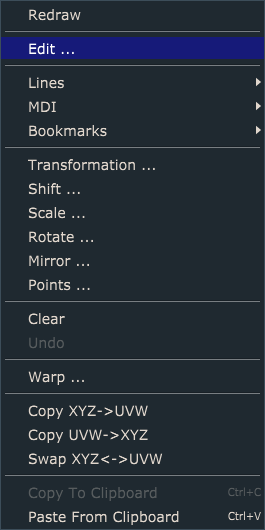
Open BtnTop.txt file with your text editor. If this file is not yet created, then create new .txt file and name it BtnTop.

To add button to top toolbar which will execute Program/Edit feature and will use button name “EDIT”, write such line of code:

cmd: "Program.Edit_..." "EDIT"

-Since we will be using button to execute program command we need to use cmd command before the button code.
-Code which creates button is actually path to program command location (“Program/Edit …” with difference that level is replaced with “.” and spaces are replaced with “_”)
-To name a button, use one space and put name text into quotes (“name”).

Button will appear at the top toolbar after you restart PlanetCNC TNG software:

Follow steps above in order to create new button for any program command available from menus.


Add new user command button to left toolbar:

This example will demonstrate how to add button to left toolbar which would execute user command from Machine/User Commands menu, in this case, Square feature:
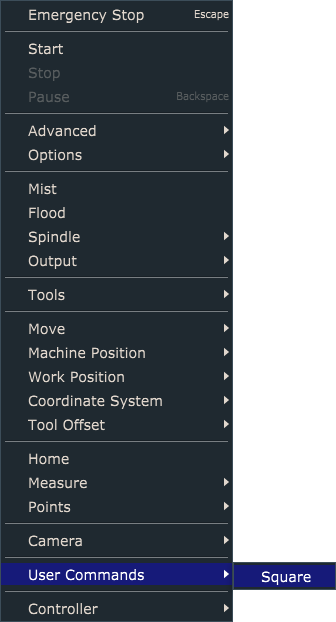
Open BtnLeft.txt file with your text editor. If this file is not yet created, then create new .txt file and name it BtnLeft.

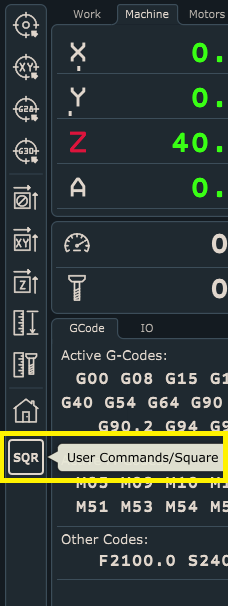
To add button to left toolbar which will execute Machine/User Commands feature and will use button name “SQR”, write such line of code:

cmd: "Machine.User_Commands.UserCommand_1" "SQR"

-Since we will be using button to execute program command we need to use cmd command before the button code.
-Code which creates button is actually path to program command location (“Machine/User Commands” with difference that level is replaced with “.” and spaces are replaced with “_”):
-User command ID is its menu order number, and since Square is the only user command menu item, its ID is 1.
-To name a button, use one space and put name text into quotes (“name”).

Button will appear at left toolbar after you restart PlanetCNC TNG software:
 

Adding new button to bottom toolbar with back-light indication

This example will demonstrate how to add button to bottom toolbar which would use expression, hint display and  backlight indication.

Attributes suitable for such button behavior would be:

-expr: Type of command used

-enable: Using enable command, user can evaluate any given parameter. When result is true, it enables use of button.

-updown: Using updown argument, user can evaluate any given parameter. When result of it is true, backlight will be active

-updatefast: Using updatefast command, user can evaluate any given parameter. When result is true, it enables prioritized button display refresh rate.

-tooltip: Inserted text will be displayed when cursor hovers over button (hint)


More detailed explanation of button behavior would be:

– button executes custom M-code, M900

– its use is disabled in case of active E-stop

– Backlight is toggled when pressed

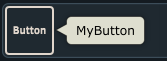
-Displayed name of button will be “Button”

– When we hover  with cursor over button, hint “MyButton” is displayed


Open BtnBottom.txt file with your text editor. If this file is not yet created, then create new .txt file and name it BtnBottom.

To achieve button behavior described above, write such line of code:

expr: "startcode('M900')" "Button" enable="_hw_estop == 0" updown="_mybutton == 1" update="true" tooltip="MyButton"

-To execute M900 gcode, we will use startcode function. In this case,  we need to use expr command at the beginning of the button code.

-To name your button, write desired text between the quotes.

-Button will be enabled only when E-stop is not active. For this purpose we evaluate parameter _hw_estop using the enable command.

-Backlight will be achieved using updown argument. Backlight will be active if user parameter _mybutton is 1(true).  To achieve proper parameter manipulation, we wrote suitable code in the M900 gcode file.  In this case, simple if…else statement was used. This code within the M900 gcode file, will toggle _mybutton parameter value between 0 and 1.

Tooltip value displayed will be MyButton.


Button will appear at bottom toolbar after you restart PlanetCNC TNG software.

Left image displays button in idle state with tooltip text displayed(mouse cursor hovers over the button), right image displays button in active state and  with active backlight:


Customizing buttons icon and color

This example will demonstrate how to add custom button icon for existing user command button .

Button icons use .SVG files which are located in Icons folder of user profile folder. Default .SVG files are already included but you can add your own .SVG files. For this example we will use SVG file “cow.svg”, which was saved in the Icons folder in advance.


Attributes available for such button are:

-image: Using image command, user sets desired image file as new button icon

-stroke: This value will be used as thickness value of button icon 

-color: 3 byte hex RGB color value

-imagechange: When true, new icon file will use color shades set with color and stroke values. When false, new icon will keep its original colors and stroke.


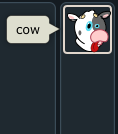
To use cow.svg icon for button without custom color value and tooltip text “COW”, write this code:

cmd: "Machine.User_Commands.UserCommand_1" "" image="Icons/cow.svg" imagechange="False" stroke=1 color=#0ffca0 tooltip="cow"

Button will appear at the right toolbar after you restart PlanetCNC TNG software.
 

To use cow.svg icon for button with custom color value and tooltip text ” GREEN COW”, write this code:

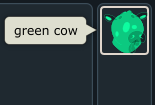
cmd: "Machine.User_Commands.UserCommand_1" "" image="Icons/cow.svg" imagechange="True" stroke=1 color=#0ffca0 tooltip="green cow"

Button will use light green shade set with color value and tooltip text green cow:
 

Additional examples of custom toolbar buttons

I will describe few more examples of buttons that have same effect more or less, but each with a different approach.

Since there were a lot of requests on how to activate controllers output pins and ExtInOut board outputs, these examples will mainly focus on these.


Buttons for activation (ON) of output pins 1-4:

Example 1: Using  _output and _output_num  parameters:

expr: "_output_num|1=1" name="OUT1" updown="_output==1" update="true"   
;expr: "_output_num|1=1" -> Sets controller output pin 1 to 1(high). For this we use parameter _output_num, which is an index parameter.
;Meaning, _output_num also needs index value(number of output pin we want to activate).

;updown="_output==1"     -> Button will have active backlight when _output parameter value will be equal to 1. 

expr: "_output=2" name="OUT2" updown="_output==2" update="true"
;expr: "_output=2" -> Sets _output parameter value to 2( this sets second output pin to 1), mind that all output other pin values are at 0. 
;updown="_output==2" update="true" -> Button will have active backlight when the _output register value will be equal to 2. 

expr: "_output=4" name="OUT3" updown="_output_num|3" update="true"
;expr: "_output=4" -> sets _output parameter value to 4(this sets third output pin to 1), mind that all other output pin values are at 0. 
;updown="_output_num|3" update="true" -> Button will have active backlight when the third output pin will be 1(high). 

expr: "_output=8" name="OUT4" updown="_output_num|4" update="true"


Example 2: Using  _output ,_output_num  parameters and bitwise OR  binary operator:

expr: "_output= _output | 1" name="OUT1" updown="_output_num|1" update="true"
; _output= _output | 1 -> by using OR bitwise operator, we can set the first output pin of _output parameter. Make sure to use the space before and after the "|" symbol 
; updown="_output_num|1" update="true" -> Button will have active backlight when the first output pin will be 1(high). 

expr: "_output= _output | 2" name="OUT2" updown="_output_num|2" update="true"
expr: "_output= _output | 4" name="OUT3" updown="_output_num|3" update="true"
expr: "_output= _output | 8" name="OUT4" updown="_output_num|4" update="true"


Example 3: Using  expression function out(). When using expression function out(), zero based numbering is used (1st pin has number zero, 2nd pin has number one etc…)

expr: "out(0,1)" "OUT1" updown="_output_num|1" update="true"
;expr: "out(0,1)" -> sets the first output pin to 1. First argument of out() function is output pin number, second is output value. 
;updown="_output_num|1" update="true" -> Button will have active backlight when the first output pin will be 1(high). 

expr: "out(1,1)" "OUT2" updown="_output_num|2" update="true"

expr: "out(2,1)" "OUT3" updown="_output_num|3" update="true"

expr: "out(3,1)" "OUT4" updown="_output_num|4" update="true"

Buttons for deactivation (OFF) of output pins 1-4:

Example 1: Using  _output and _output_num  parameters:

expr: "_output_num|1=0" name="OFF1"
;expr: expr: "_output_num|1=0" -> sets first output pin to 0. 
expr: "_output_num|2=0" name="OFF2"
;expr: expr: "_output_num|2=0" -> sets second output pin to 0. 
expr: "_output_num|3=0" name="OFF3"
;expr: expr: "_output_num|3=0" -> sets third output pin to 0. 
expr: "_output_num|4=0" name="OFF4"
;expr: expr: "_output_num|4=0" -> sets fourth output pin to 0. 
expr: "_output=0" name="ALL"
;expr: "_output=0" -> sets whole _output parameter value to 0. This means, if you would have other active outputs, this expr will reset all of them. 

Example 2: Using  _output  parameter and bitwise AND and  NEGATION unary operator:

expr: "_output= _output & ~1" name="OFF1" 
;"_output= _output & ~1" -> by using bitwise AND and NEGATION operator, we reset the first output pin of _output parameter. 

expr: "_output= _output & ~2" name="OFF2" 

expr: "_output= _output & ~4" name="OFF3" 
;"_output= _output & ~4" -> by using bitwise AND and NEGATION operator, we reset the fourth output pin of _output parameter. 

expr: "_output= _output & ~8" name="OFF4" 

expr: "_output= _output & ~_output" name="ALL"
;expr: "_output= _output & ~_output -> sets whole _output parameter value to 0. This means, if you would have other active outputs, this expr will reset all of them. 

Example 3: Using  expression function out(). When using expression function out(), zero based numbering is used (1st pin has number zero, 2nd pin has number one etc…)

expr: "out(0,0)" "OFF1" 
;expr: "out(0,0)" -> resets the first output pin to 1. First argument of out() function is output pin number, second is output value. 
expr: "out(1,0)" "OFF2" 

expr: "out(2,0)" "OFF3" 

expr: "out(3,0)" "OFF4"

Buttons for toggling of output pins 1-4:

Example 1: Using  _output and _output_num  parameters and bitwise AND,OR  and  NEGATION unary operator:

expr: "if(_output & 1,_output= _output & ~1,_output= _output | 1)" name="OUT1" updown="_output_num|1" update="true"
;expr: "if(_output & 1,_output= _output & ~1,_output= _output | 1)" -> If.. statement uses three arguments. 
;First argument is condition, which when true, executes second arg. If first arg is not true, third arg is executed. 
;So, with _output & 1 (arg1) we check if first output pin is already active, if it is, we reset it using _output= _output & ~1(arg2). If first output is not active, we set it with 
_output= _output | 1(arg3). 

expr: "if(_output & 2,_output= _output & ~2,_output= _output | 2)" name="OUT2" updown="_output_num|2" update="true"

expr: "if(_output & 4,_output= _output & ~4,_output= _output | 4)" name="OUT3" updown="_output_num|3" update="true"

expr: "if(_output & 8,_output= _output & ~8,_output= _output | 8)" name="OUT4" updown="_output_num|4" update="true"

Example 2: Using  command type cmd and Machine/Output

cmd: "Machine.Outputs.Output_1" "OUT1" updown="_output_num|1" update="true"  
;cmd: "Machine.Outputs.Output_1" -> using cmd, we can insert the menu path to desired menu item. In this case this is the Output submenu in the Machine menu. 
;Because we use cmd of a integrated menu feature under Machine menu, this button will automatically toggle the dedicated output, as also backlight activation. 
cmd: "Machine.Outputs.Output_2" "OUT2" updown="_output_num|2" update="true" 
cmd: "Machine.Outputs.Output_3" "OUT3" updown="_output_num|3" update="true"
cmd: "Machine.Outputs.Output_4" "OUT4" updown="_output_num|4" update="true"

Example 3: Using  _output parameter and logic NOT unary operator

expr: "_output|1=!_output|1" name="OUT1" updown="_output|1" updatefast="true" 
;expr: "_output|1=!_output|1" -> this is pretty straight forward expression. Value of Output|1 parameter value is negated(inverted). ! is logic negation operator used for negation of parameter. 
;So if current value of _output|1 is 1, expr will negate it and set its value to 0. 
expr: "_output|2=!_output|2" name="OUT2" updown="_output|2" updatefast="true" 
expr: "_output|3=!_output|3" name="OUT3" updown="_output|3" updatefast="true" 
expr: "_output|4=!_output|4" name="OUT4" updown="_output|4" updatefast="true"

Example 4: Using  _output_num parameters and expression function out()

expr: "if(_output_num|1,(out(0,0)),(out(0,1)));" "OUT1" updown="_output_num|1" updatefast="true" 
;"if(_output_num|1,(out(0,0)),(out(0,1)));" -> As explained earlier, if.. statement uses three arguments. In this case, first arg checks the current value of _output|num1 parameter.
;If its value is high(true) it will reset it, using arg2. If it is low(false) it will set it using arg3. Arguments can use expression functions such as out(). 
;out(0,0) -> resets first output pin
;out(0,1) -> sets first output pin
expr: "if(_output_num|2,(out(1,0)),(out(1,1)));" "OUT2" updown="_output_num|2" updatefast="true" 
expr: "if(_output_num|3,(out(2,0)),(out(2,1)));" "OUT3" updown="_output_num|3" updatefast="true" 
expr: "if(_output_num|4,(out(3,0)),(out(3,1)));" "OUT4" updown="_output_num|4" updatefast="true"

Buttons for ExtInOut board output activation

Buttons for activation (ON) of extout pins 1-4:

Example 1: Using  _output and _output_num  parameters:

expr: "_extout1=1" name="EXT1" updown="_extout1==1" update="true"
expr: "_extout1=2" name="EXT2" updown="_extout1==2" update="true"
expr: "_extout1=4" name="EXT3" updown="_extout1==4" update="true"
expr: "_extout1=8" name="EXT4" updown="_extout1==8" update="true"

Example 2: Using  _output ,_output_num  parameters and bitwise OR  binary operator:

expr: "_extout1 = _extout1 | 1" name="EXT1" updown="_extout1_num|1" update="true"
expr: "_extout1 = _extout1 | 2" name="EXT2" updown="_extout1_num|2" update="true"
expr: "_extout1 = _extout1 | 4" name="EXT3" updown="_extout1_num|3" update="true"
expr: "_extout1 = _extout1 | 8" name="EXT4" updown="_extout1_num|4" update="true"

Example 3: Using  expression function extout1()

expr: "extout1(0,1)" "EXT1" updown="_extout1_num|1" update="true"
expr: "extout1(1,1)" "EXT2" updown="_extout1_num|2" update="true"
expr: "extout1(2,1)" "EXT3" updown="_extout1_num|3" update="true"
expr: "extout1(3,1)" "EXT4" updown="_extout1_num|4" update="true"

Buttons for deactivation (OFF) of extout pins 1-4:

Example 1: Using  _output and _output_num  parameters:

expr: "_extout1_num|1=0" name="OFF1" 
expr: "_extout1_num|2=0" name="OFF2" 

expr: "_extout1_num|3=0" name="OFF3" 

expr: "_extout1_num|4=0" name="OFF4" 

expr: "_extout1=0" name="ALL"

Example 2: Using  _output ,_output_num  parameters and bitwise AND and  NEGATION unary operator:

expr: "_extout1= _extout1 & ~1" name="OFF1" 

expr: "_extout1= _extout1 & ~2" name="OFF2" 

expr: "_extout1= _extout1 & ~4" name="OFF3" 

expr: "_extout1= _extout1 & ~8" name="OFF4" 

expr: "_extout1= _extout1 & ~_extout1" name="ALL"

Example 3: Using  expression function out()

expr: "extout1(0,0)" "OFF1" 

expr: "extout1(1,0)" "OFF2" 

expr: "extout1(2,0)" "OFF3" 

expr: "extout1(3,0)" "OFF4"

Buttons for toggling of extout pins 1-4:

Example 1: Using  _output and _output_num  parameters and bitwise AND,OR  and  NEGATION unary operator:

expr: "if(_extout1 & 1, _extout1 = _extout1 & ~1, _extout1 = _extout1 | 1);" "EXTto" updown="_extout1_num|1" updatefast="true"
expr: "if(_extout1 & 2, _extout1 = _extout1 & ~2, _extout1 = _extout1 | 2);" "EXTto" updown="_extout1_num|2" updatefast="true"
expr: "if(_extout1 & 4, _extout1 = _extout1 & ~4, _extout1 = _extout1 | 4);" "EXTto" updown="_extout1_num|3" updatefast="true"
expr: "if(_extout1 & 8, _extout1 = _extout1 & ~8, _extout1 = _extout1 | 8);" "EXTto" updown="_extout1_num|4" updatefast="true"

Example 2: Using  command type cmd and Machine/Output

cmd: "Machine.Outputs.ExtOut1_1" "EXT1" updown="_extout1_num|1" update="true" 
cmd: "Machine.Outputs.ExtOut1_2" "EXT2" updown="_extout1_num|2" update="true" 
cmd: "Machine.Outputs.ExtOut1_3" "EXT3" updown="_extout1_num|3" update="true" 
cmd: "Machine.Outputs.ExtOut1_4" "EXT4" updown="_extout1_num|4" update="true"

Example 3: Using  _output parameter and logic NOT unary operator

expr: "_extout1|1=!_extout1|1;" "EXTto" updown="_extout1|1" updatefast="true"
expr: "_extout1|2=!_extout1|2;" "EXTto" updown="_extout1|2" updatefast="true"
expr: "_extout1|3=!_extout1|3;" "EXTto" updown="_extout1|3" updatefast="true"
expr: "_extout1|4=!_extout1|4;" "EXTto" updown="_extout1|4" updatefast="true"

Example 4: Using  _output_num parameters and expression function out()

expr: "if(_extout1_num|1,(extout1(0,0)),(extout1(0,1)));" "EXTto" updown="_extout1|1" updatefast="true" 
expr: "if(_extout1_num|2,(extout1(1,0)),(extout1(1,1)));" "EXTto" updown="_extout1|2" updatefast="true" 
expr: "if(_extout1_num|3,(extout1(2,0)),(extout1(2,1)));" "EXTto" updown="_extout1|3" updatefast="true" 
expr: "if(_extout1_num|4,(extout1(3,0)),(extout1(3,1)));" "EXTto" updown="_extout1|4" updatefast="true"

Buttons for Jog step values

Example 1: This example describes how to create a set of buttons for different  Jog step values.
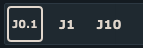
expr: "_jog_step=0.1" "J0.1" ""
;expr: "_jog_step=0.1" "J0.1" "" -> we assign value of 0.1 to a a jog step parameter. So when this button will be pressed, parameter will be assigned the value of 0.1 and when jog step will be used,
;machine will move in 0.1 distance increments. 
expr: "_jog_step=1" "J1" ""
expr: "_jog_step=10" "J10" ""

Example 2: Since having multiple buttons for same parameters is somewhat space consuming, user can create menu button. Like name suggests, menu button will open a menu, where user can select desired menu item.
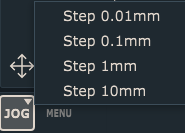
This example uses expr:

expr: "_jog_step=val" "JOG" typ=menu val="0.01@Step 0.01mm|0.1@Step 0.1mm|1@Step 1mm|10@Step 10mm"
;This example shows how to assign different values to jog step parameter using menu button. Menu will offer different values available as menu items. 
;User can then select the item and assign new jog step parameter value. 

;typ=menu -> this set the button type as menu button

;Val->  variable which will inhibit different values, based on which button menu item will be selected

;val="0.01@Step 0.01mm|0.1@Step 0.1mm|1@Step 1mm|10@Step 10mm" ->
;0.01@Step 0.1mm -> The value before @ symbol will be used as a value which will be assigned to val variable and consequently used as a new jos step value. All text after symbol @ will be displayed as menu item text. 
;We use "|" symbol to divide each menu items properties.

This example uses cmd command:

cmd: "Jog.Jog_Step.Set" "JOG" typ=menu val="0.01@Step 0.01mm|0.1@Step 0.1mm|1@Step 1mm|10@Step 10mm"
;val is assigned directly to the Jog.Jog_Step.Set command


Buttons for PWM duty cycle values

Example 1: This example describes how to create a set of buttons for different  PWM duty cycle  values.
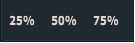
We can use the outpwm() expression function. When using expression function outpwm(), zero based numbering is used (1st pin has number zero, 2nd pin has number one etc…)

expr: "outpwm(0, 25)" "P25"
;expr: "outpwm(0,25)" -> sets the the duty cycle of first PWM output pin at 25%. First argument of out() function is PWM output pin number, second is duty cycle value in %.  
expr: "outpwm(0, 50)" "P50"
expr: "outpwm(0, 75)" "P75"


Or we can use the Machine.Output_PWM command with Val and expr arguments:

cmd: "Machine.Output_PWM" val=[0;expr:(0+75)] name="75%"
; val will be consisted from two parameters. First is the number of the PWM output pin (mind the zero based numbering) and second one, in this case is, the value of duty cycle that is calculated
;using an expression. For this example we used simple and straightforward expression of addtion 0+75. So, Machine.Output_PWM command is assigned the value consisted from output pin number and duty cycle value. 

cmd: "Machine.Output_PWM" val=[1;expr:(0+50)] name="50%"
cmd: "Machine.Output_PWM" val=[5;expr:(0+25)] name="25%"


Example 2: Since having multiple buttons for the same PWM output pins is somewhat space consuming, user can create menu button. Like name suggests, menu button will open a menu, where user can select desired menu item. In this case, menu items will be different values of duty cycle for output pin 6:
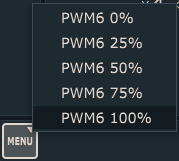
cmd: "Machine.Output_PWM" "MENU" stroke=1.1 typ=menu val="[5;0]@PWM6 0%|[5;25]@PWM6 25%|[5;50]@PWM6 50%|[5;75]@PWM6 75%|[5;100]@PWM6 100%"
;This example shows how to assign different values of PWM duty cycle of PWM output pin, using menu button. Menu will offer different values available as menu items. 
;User can then select the item and assign new duty cycle value. 

;typ=menu -> this sets the button type as menu button 

;Val-> variable which will inhibit different values, based on which button menu item will be selected 
;val="[5;0]@PWM6 0%|[5;25]@PWM6 25%|[5;50]@PWM6 50%|[5;75]@PWM6 75%|[5;100]@PWM6 100%" -> [5;0]@PWM6 0% -> The values within the []brackets before @ symbol, will set the PWM output pin number and value of duty cycle in %.
These values will be assigned to val variable and consequently used as a new duty cycle value for selected output PWM pin. All text after symbol @ will be displayed as menu item text. 

;We use "|" symbol to divide each menu items properties.


We recommend using expression function: cmdlist()

What this expression does is, it will display all commands (menu items) from File, View,Program,Machine and Help menus.

So, you can type into the MDI window:

=cmdlist()

Software will display the list in the Output window of PlanetCNC TNG software.

Another thing that is very useful is PlanetCNC TNG G-code reference manual. User can find all parameters, functions, gocdes which could be useful when creating and configuring custom buttons.



Using “Warp” with PlanetCNC TNG software

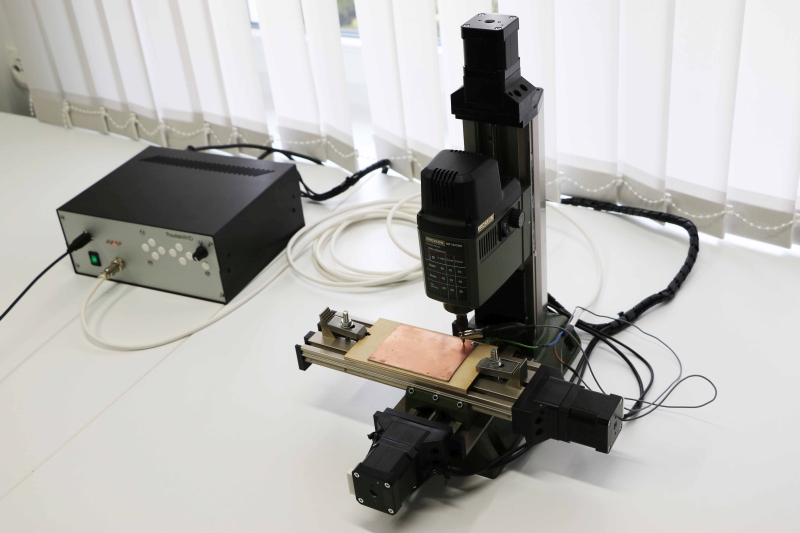
This tutorial will explain how to correctly use Machine/Measure/Surface feature and Warp feature using PlanetCNC TNG software and PlanetCNC motion controller.

Since PCB milling is a very delicate and precise procedure (distance between two pads can be only few mils), already smallest PCB surface height irregularities can create bad results.
It is very important that depth of milling is constant over the whole PCB surface throughout the whole milling process. We can achieve this by using “Warp” procedure.
‘Warp’ feature helps apply generated toolpath over bended, curved or uneven surfaces.

The most important step of ‘Warp’ procedure is obtaining surface points. We can  either capture each point single-handedly  or we can use “Measure Surface” procedure. We recommend the latter.

Points are obtained using probe (or normal engraving tool) which would activate dedicated input of controller.


Step 1:

First you need to configure probe input of controller and probe parameters.

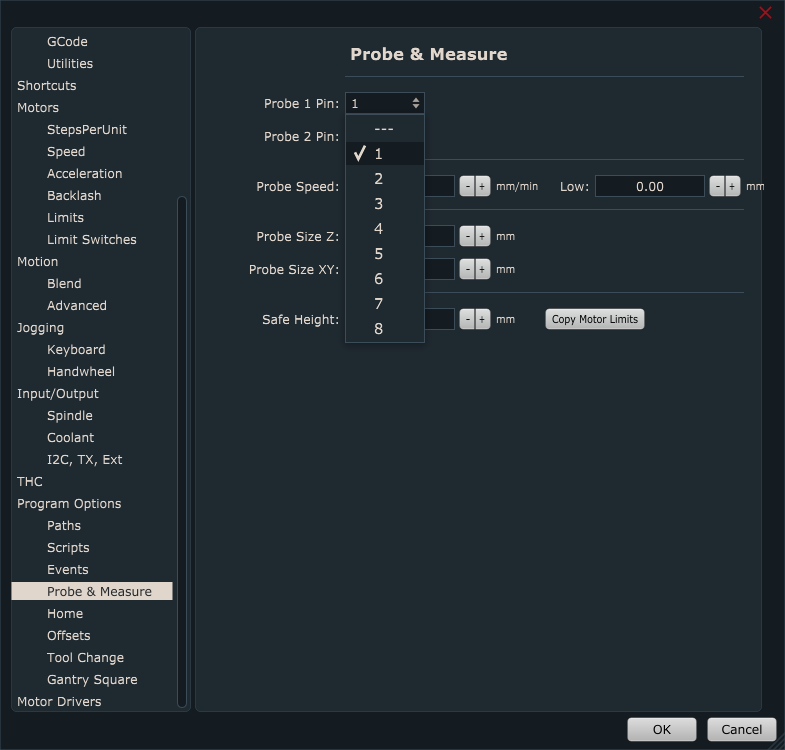
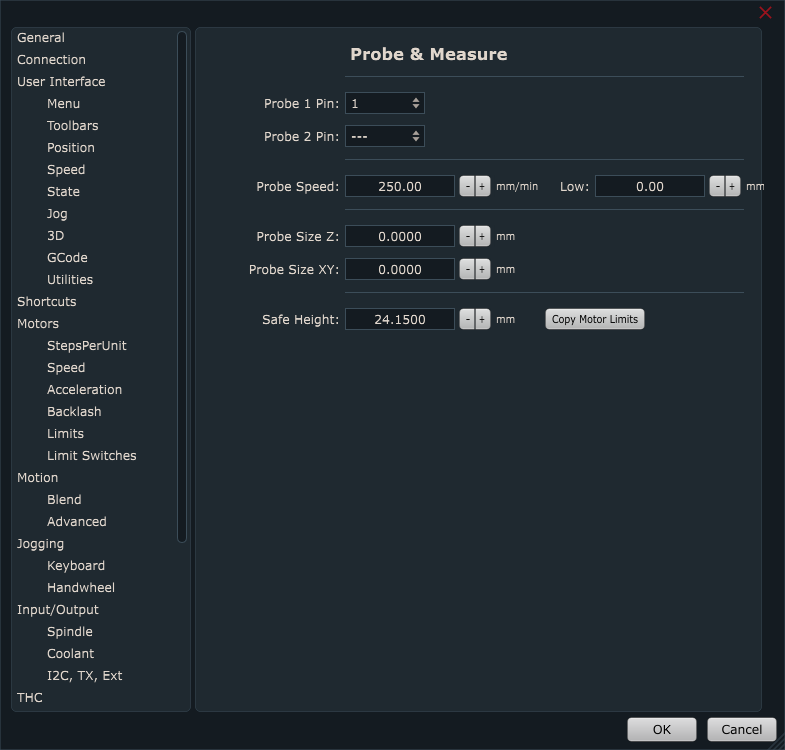
In PlanetCNC TNG under File/Settings/Program Options/Probe & Measure configure input pin of controller that you intend to use surface point measuring.

You can select between either Probe 1 or Probe 2 option. It doesn’t matter which one you choose.


Probe speed will define at which speed machine Z axis will descend to obtain single surface point. It is recommended that you choose suitable value for your machine capabilities. Many times Z axis motor is not capable of higher values of speed and accelerations since it cannot sustain the inertia. In such cases, usually Z axis motor will loose steps, and measurement will be faulty.

Low: After initial first probe activation, machine will repeat measurement again, but this time at Low speed.

Probe Size Z: Length of probe. If you will measure same copper board that will later be used for PCB engraving set this value at 0.

Probe Size XY: Radius of the stylus ball of touching probe.

Safe Height: Height value to which machine ascends in-between measurement procedure.


Step 2:
Place your workpiece material (in future text ‘copper board’) to machines table. Mount it properly, so that you avoid any inconveniences later such as vibration, dislocation etc…also make sure that copper board is not in contact with the machine table.

Step 3:

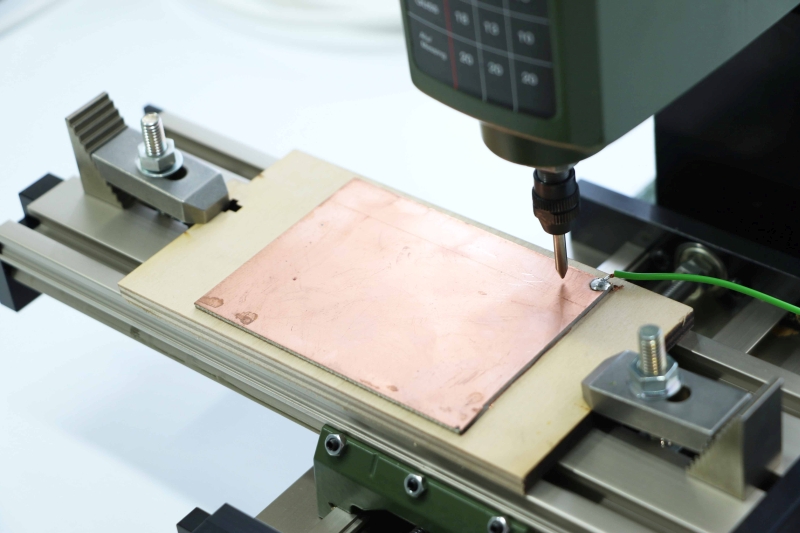
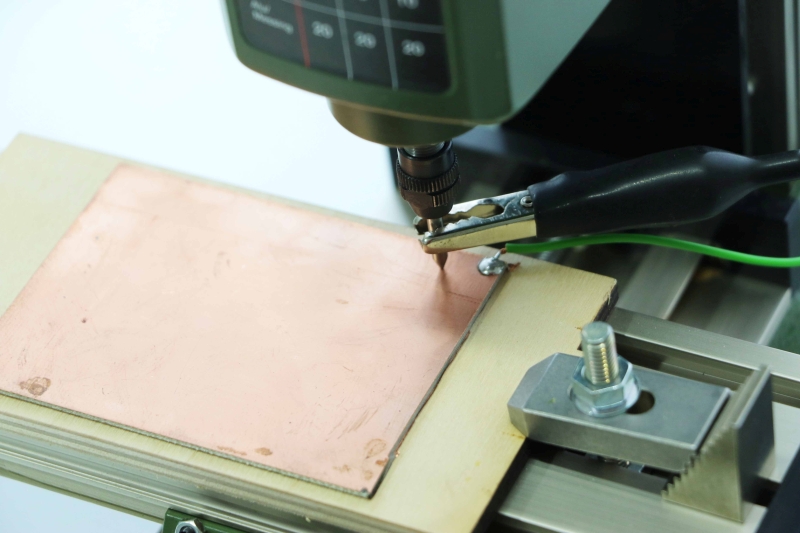
Since copper board itself is conductive material,  it can already be used as sensor. You can solder wire to it or you could just use mounting screw to attach connection wire to copper board.

Now connect wire from your copper board to controllers ‘sensor’ input.

Other wire should be connected to controllers GND terminal. Other end of this wire can be clamped to engraving tool:

While Mk3/4 controller has a designated sensor input, Mk3 controller uses assignable inputs, so you can connect copper board wire at any input of Input header and configure it in settings later.


Step 4:

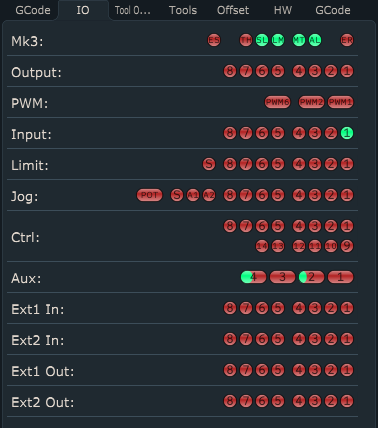
Now open IO tab and check if correct input is activated under “Input” panel. This is just to be sure that everything is working correctly. Image below shows that Input 1 is activated.

Step 5:

Jog your machine to desired initial origin point of your copper board, usually its corner, and click: “Machine/Work Position/Axis to Zero/XY” or click “Work Position Axis to Zero XY” button from toolbar.

With work position XY set to zero, you have initial point of your workpiece material from which you will start your ‘Warp’ measuring as also later align your g-code program.

Step 6:

Now that we set zero XY work positions, we can start with surface point measuring.

Click “Machine/Measure/Measure Surface”:

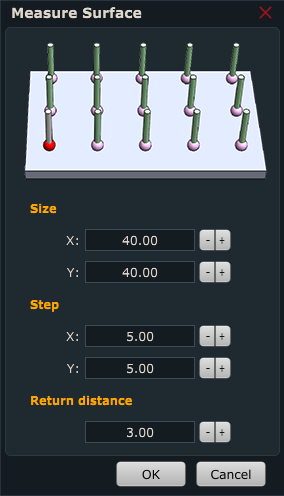
“Measure surface” user dialogue will appear:

Size X: X axis dimension of measuring area surface.

Size Y: Y axis dimension of measuring area surface.

Step: Distance between two neighborly measuring points 

Return Distance: After probe touches the surface it will retract for this distance.


Step 7:

After you click OK, machine will begin measuring surface points of copper board.


Step 8:

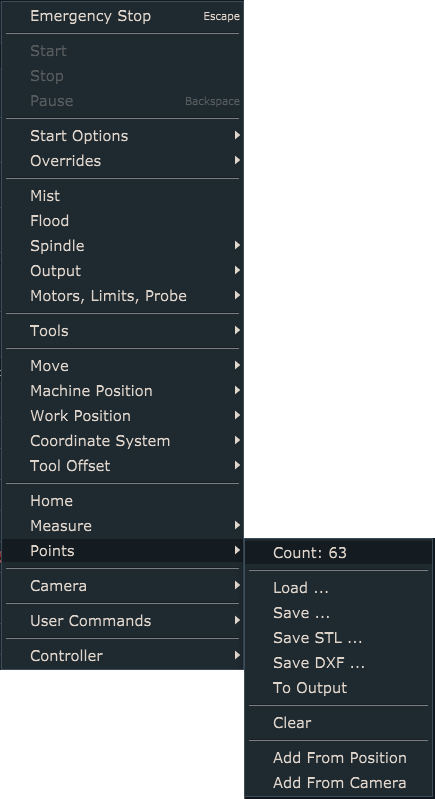
When surface measuring procedure is finished,  measured points will be present under Machine/Points. User can save this group of settings as a file.


Step 10:

Now open your Gerber file using “File/Import Gerber”:


Step 11:

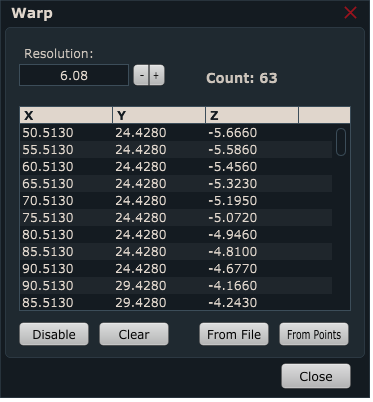
To apply “Warp” click: “Program/Warp” and click “From Points…” button.

Table will be populated with coordinates of measured points:

Click Close.


Step 13:

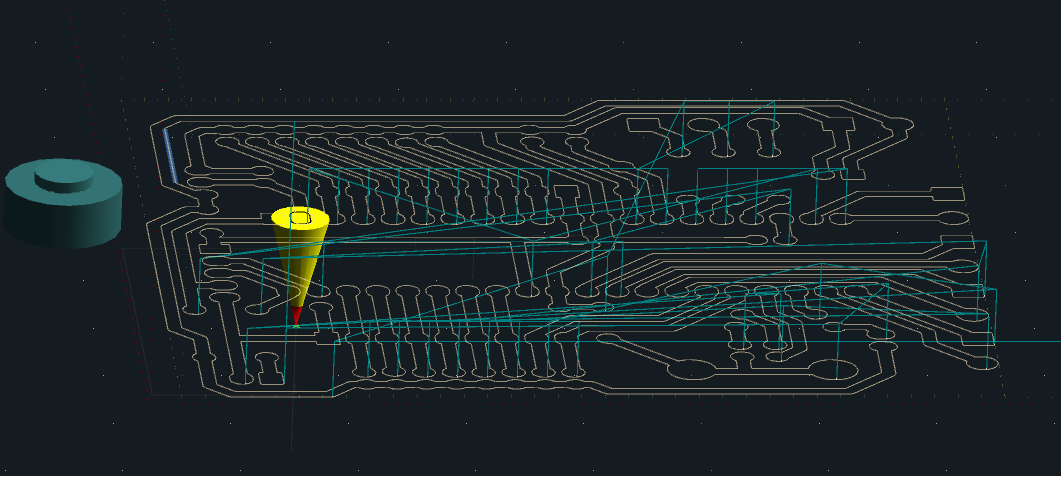
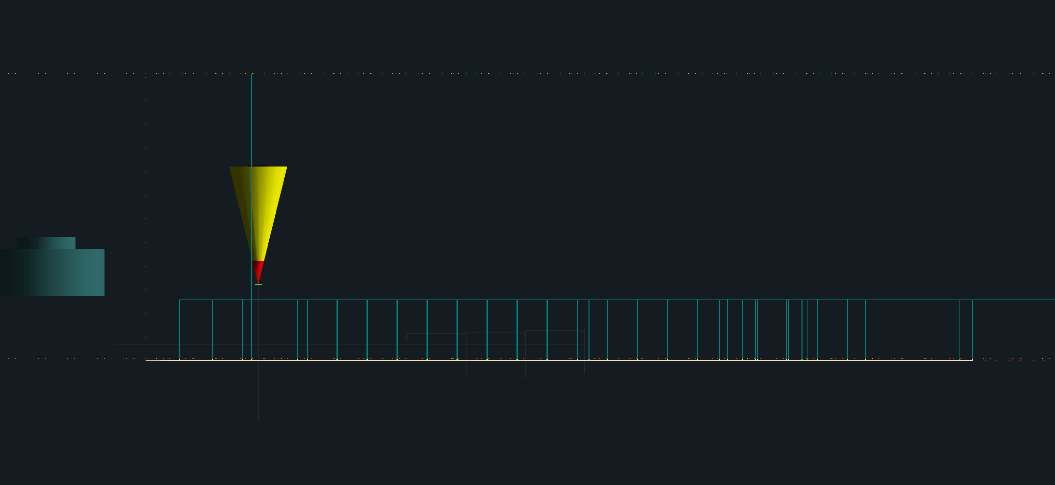
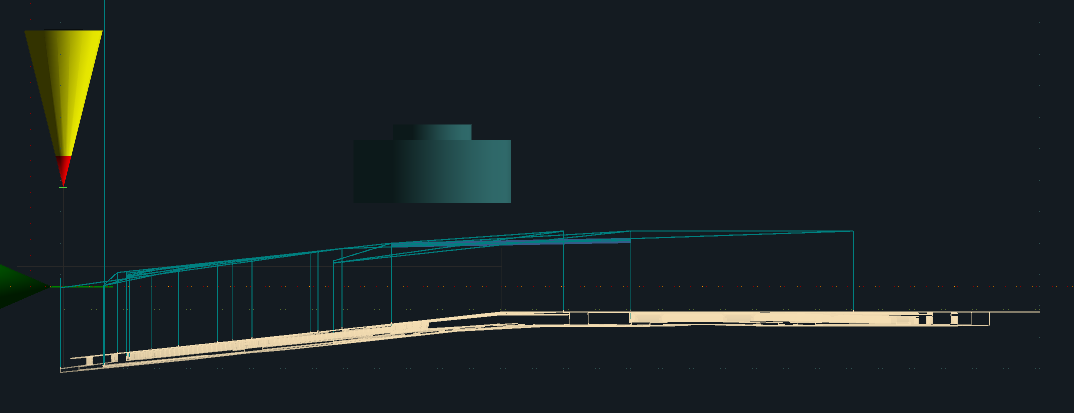
You will notice that the displayed toolpath has changed in order to compensate for boards curved surface. This is much more evident if you set parameter “Alpha” in settings(File/Settings/User Interface/Colors/Alpha).

These are all steps required to apply Warp with your program. Machine will mill at constant depth no matter of the surface curvature.


PLEASE NOTE:

“Measure surface” script file is available for edit.

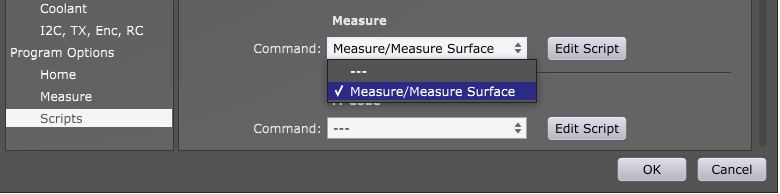
You can open and edit script file if you click: “File/Settings/Program Options/Scripts/Measure” and select “Measure/Measure Surface” from drop down menu. Click: “Edit Script” and script file will open in your default text editor.

Alternatively you can open surface measure script file “Machine.Measure.Measure_Surface.gcode” located in “PlanetCNC64.Scripts” folder with your text editor.


How to create “Mist Delay” script file in PlanetCNC TNG software

This tutorial will describe how to create script file for short delay after Mist(M8)is turned ON.

With PlanetCNC TNG, user can create or customize g-code procedures (e.g. for M7,M8 g-codes, M6 g-code) using script files.

Script files are located in Scripts folder of corresponding profile in PlanetCNC TNG installation folder.


To create and modify M8 g-code script please follow steps below:

1. Start PlanetCNC TNG software and click File/Settings/Program Options/Scripts and find M-code option. From drop down menu select M8 and click Edit Script.

2. Blank M8 script file is created and opened in default text editor
3. Add M8 and G04 g-codes into blank file. Script file should include g-code lines:

M8
G04 P5


Now after each time we turn Mist ON, software waits 5 seconds before it continues with program execution.


How to control PlanetCNC TNG from your own software

Command line arguments

PlanetCNC TNG accepts commands from command line. Only one software instance can run at same time. When you run second instance it will simply pass its arguments to running instance. Running instance will process these arguments and execute command.

Here are some examples (Windows, 64bit):

1. Open command prompt.
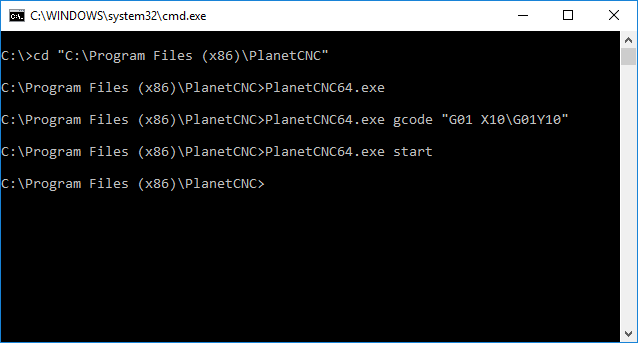
2. Go to PlanetCNC TNG installation folder. Usually “C:Program Files (x86)PlanetCNC”.
3. Type PlanetCNC64.exe. Software will start.
4. Type PlanetCNC64.exe gcode “G01 X10G01 Y10”. You will notice that two g-code lines are now loaded.
5. Type PlanetCNC64.exe start. Machine will start and g-code will be executed.

Named pipes

More advanced option is to use named pipes. Named pipes is simple cross-platform interprocess communication mechanism. It is possible to use named pipes in almost all programming languages.

PlanetCNC TNG must be running otherwise it will not receive command. If you do not want to show main window you can start software with “hide” command.

Here is source code of an example (Windows, C++):
PipeExample


List of supported commands

Both options described above use same commands. Here is a list and brief explanation.

show Shows main window
hide Hides main window
exit Exits program
estop Toggles EStop
start Performs Start
stop Performs Stop
pause Performs Pause
isestop Returns 1 if EStop is active, 0 otherwise
ispause Returns 1 if Pause is active, 0 otherwise
open "filename" Opens GCode from file
gcode "program" Opens GCode from string
close Closes opened GCode
mdi "command" Executes MDI command
param name=value Sets parameter value
param name Returns parameter value
posabs Returns absolute position for all axes
posabsx Returns absolute position for X axis
posabsy Returns absolute position for Y axis
posabsz Returns absolute position for Z axis
posabsa Returns absolute position for A axis
posabsb Returns absolute position for B axis
posabsc Returns absolute position for C axis
posabsu Returns absolute position for U axis
posabsv Returns absolute position for V axis
posabsw Returns absolute position for W axis
pos Returns position for all axes
posx Returns position for X axis
posy Returns position for Y axis
posz Returns position for Z axis
posa Returns position for A axis
posb Returns position for B axis
posc Returns position for C axis
posu Returns position for U axis
posv Returns position for V axis
posw Returns position for W axis
speed Returns current speed
accel Returns current acceleration
spindle Returns current spindle RPM
input Returns value of INPUT 
input1 Returns value of INPUT 1 pin
input2 Returns value of INPUT 2 pin
input3 Returns value of INPUT 3 pin
input4 Returns value of INPUT 4 pin
input5 Returns value of INPUT 5 pin
input6 Returns value of INPUT 6 pin
input7 Returns value of INPUT 7 pin
input8 Returns value of INPUT 8 pin
jog Returns value of JOG
jog1 Returns value of JOG 1 pin
jog2 Returns value of JOG 2 pin
jog3 Returns value of JOG 3 pin
jog4 Returns value of JOG 4 pin
jog5 Returns value of JOG 5 pin
jog6 Returns value of JOG 6 pin
jog7 Returns value of JOG 7 pin
jog8 Returns value of JOG 8 pin
joga1 Returns value of JOG A1 pin
joga2 Returns value of JOG A2 pin
jogs Returns value of JOG S pin
jogpot Returns value of JOG POT
limit Returns value of LIMIT
limit1 Returns value of LIMIT 1 pin
limit2 Returns value of LIMIT 2 pin
limit3 Returns value of LIMIT 3 pin
limit4 Returns value of LIMIT 4 pin
limit5 Returns value of LIMIT 5 pin
limit6 Returns value of LIMIT 6 pin
limit7 Returns value of LIMIT 7 pin
limit8 Returns value of LIMIT 8 pin
limit9 Returns value of LIMIT 9 pin
output Returns value of OUTPUT
output1 Returns value of OUTPUT 1 pin
output2 Returns value of OUTPUT 2 pin
output3 Returns value of OUTPUT 3 pin
output4 Returns value of OUTPUT 4 pin
output5 Returns value of OUTPUT 5 pin
output6 Returns value of OUTPUT 6 pin
output7 Returns value of OUTPUT 7 pin
output8 Returns value of OUTPUT 8 pin
aux1 Returns value of AUX 1 pin
aux2 Returns value of AUX 2 pin
aux3 Returns value of AUX 3 pin
aux4 Returns value of AUX 4 pin
buffer Returns amount of free buffer 
bufferpercent Returns percent of buffer utilization
linecount Returns number of lines in GCode program
line Returns line number currently executing


Starting program from g-code

You can also start your own program from gcode. Optionally you can wait for program to finish before g-code continues or you can pass parameters.

Start myprogram.exe:
(exec,myprogram.exe) 

Start myprogram.exe and send current X and Y coordinates:
(exec,myprogram.exe #<_x> #<_y>) 

Start myprogram.exe, send current X and Y coordinates and wait for program to finish:
(execwait,myprogram.exe #<_x> #<_y>) 

Make sure that myprogram.exe is added to whitelist in settings otherwise TNG will refuse to execute it.

Hint: This external program can use named pipes to set some g-code parameters. TNG will use these parameters when g-code execution will continue.