Using output board for spindle control

In this tutorial we will explain how to use output board with VFD and spindle. We will describe how to set VFD* parameters and how to connect output board with VFD control inputs.

We are aware that many users use different VFD’s but no worries, the work flow in a sense should be the same.
*For purposes of this tutorial we will use MK3/4 controller and Chinese Huanyang VFD which is a well known piece of equipment among hobby machinists around the world.

Please follow this link to introduce yourself with output board and controller pin configuration:

Using output board with PlanetCNC controllers


Step 1: Configuring Huanyang VFD’s parameters

Variable Frequency Drive (VFD) drives an electric motor by varying the frequency and voltage supplied to the electric motor. VFD controls motors ON/OFF control,speed, direction etc..

All these functions can be controlled via external equipment (output board). Output board communicates with VFD trough its control inputs which are located on external terminal panel.

So first we need to define operating mode and configure VFD’s control inputs.

1.1: Defining VFD’s operating mode:

  • We want to start/stop spindle from VFD’s external terminal panel
  • We want to change motors direction from VFD’s external terminal panel
  • We want to regulate motors RPM from VFD’s external terminal panel with 0-10 analog voltage signal


After going trough VFD’s user manual we know that we need to configure these parameters:

“Source of Run Commands” ->parameter PD001

PD001 → set it to value 1 (Set by external terminals)

Start, stop, change direction and speed can now be controlled via screw type input terminal.
“Source of Operating Frequency”-> parameter PD002

PD002 → set it to value 1 (Set by external terminals);

Source of operating frequency signal type is determined with parameter PD070

PD070 → set to value 0 (0-10V)

Motor speed can now be controlled via screw type terminal using the 0-10V input.


Step 2: Connecting output board with VFD

We need to connect output board with VFD control inputs.

Basic Connection Diagram :
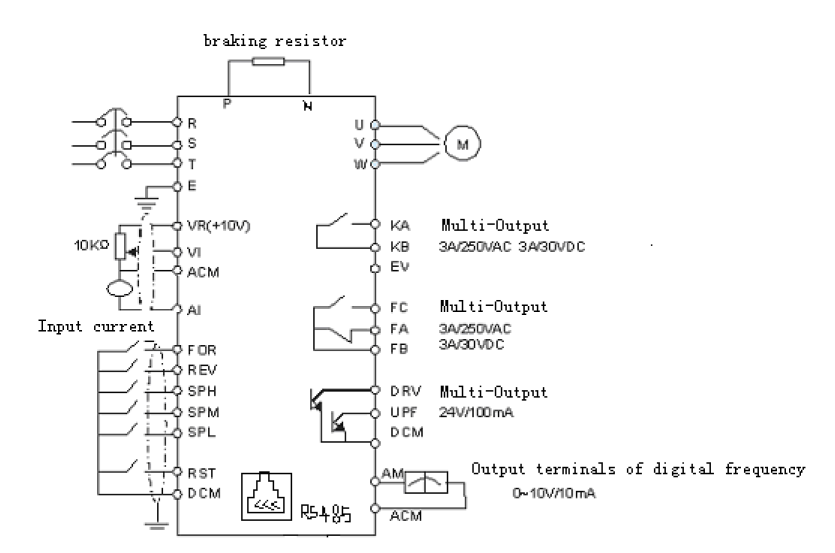
VFD_control_inputs

Control inputs of VFD that we will use:

“FOR”: This input will be used for forward motor rotation

“REV”: This input will be used for reverse motor rotation

“DCM”: Common Terminal of Digital and Control Signals

“VI”: Analog Voltage Frequency Reference Input. 0-10V signal from output board will be connected to this input.

“ACM”: Common Terminal of Analog and Control Signals. GND signal from output board will be connected to this input.

Connect output pins of controller with input pins of output board:
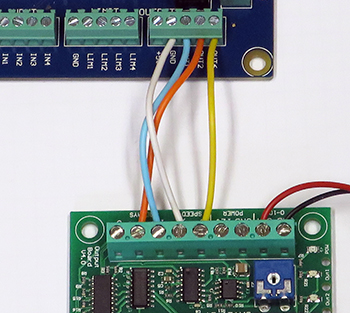
Controller_Output_board

Connect output board with VFD’s control inputs:
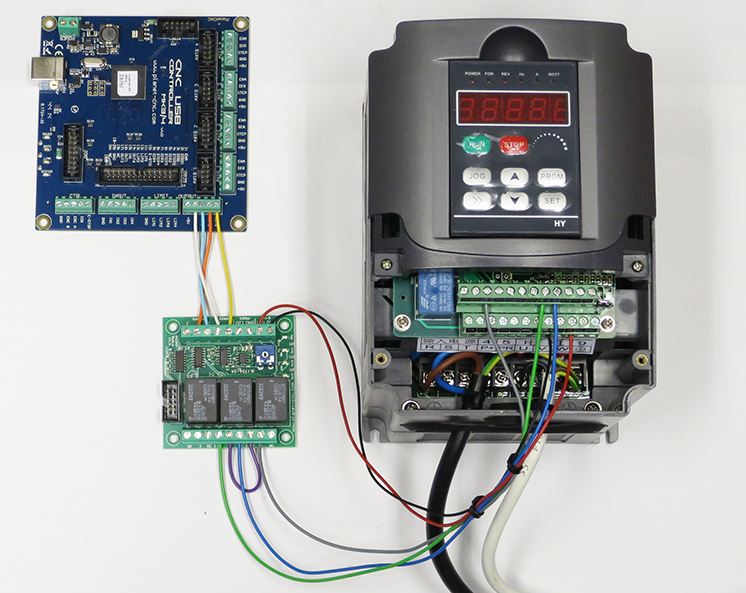
Output_VFD

Wiring diagram below illustrates how relays and varying voltage output are connected with VFDs control inputs so that we achieve on/off, direction and speed control:
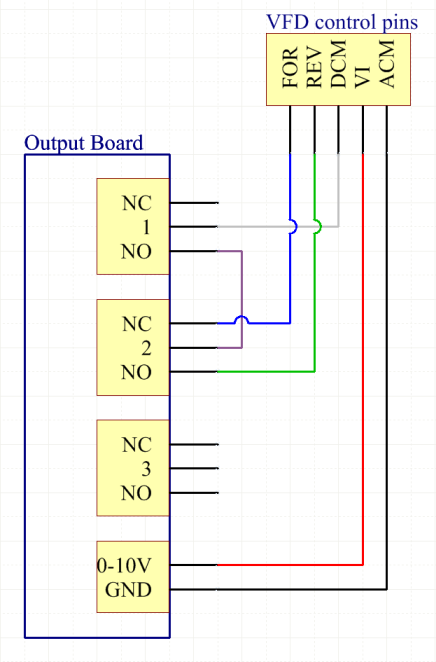
shemasrednja

Short functional behaviour description:
When spindle is turned ON (M3 command), relay 1 is activated and motor rotates in forward direction(VFDs FOR input becomes active).

As soon as we change direction, relay 2 is activated and motor starts to rotate in reverse direction (VFDs REV input becomes active).

Please NOTE:

Before any wiring is done and equipment is connected, please check that all spindle, coolant and speed g-codes activate correct corresponding relays and outputs.
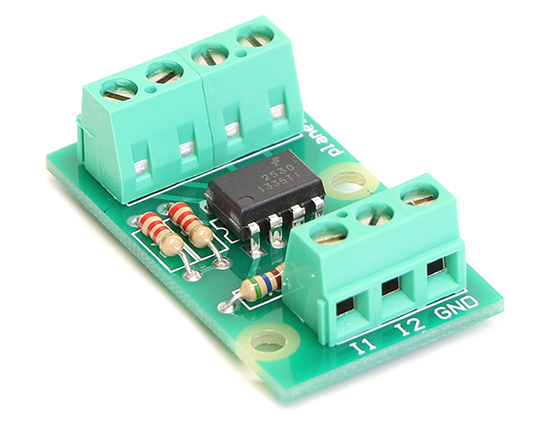
Using optocoupler adapter board with PlanetCNC controller

BannerPS_small2
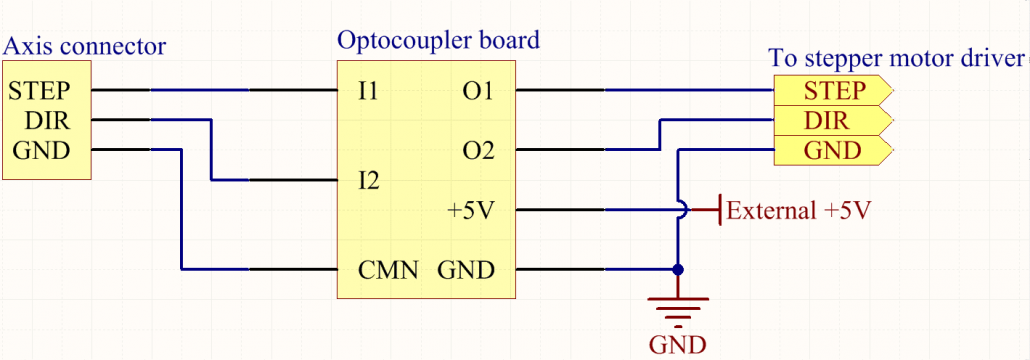
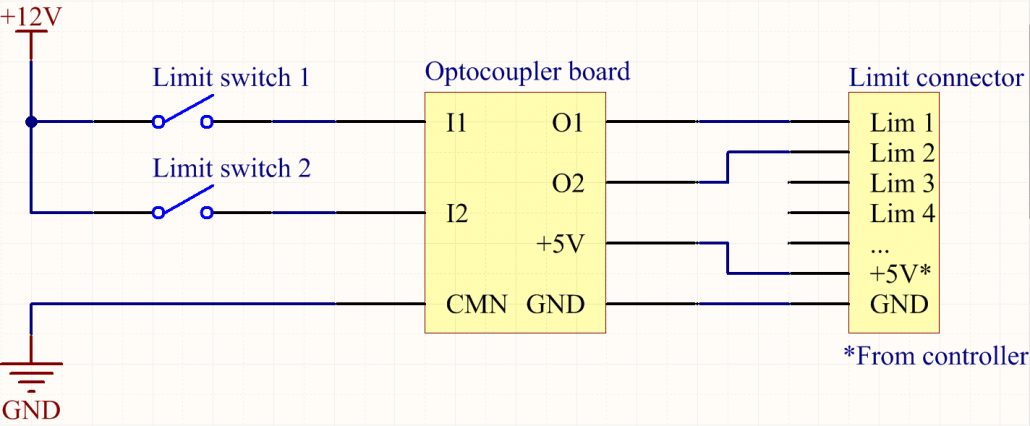
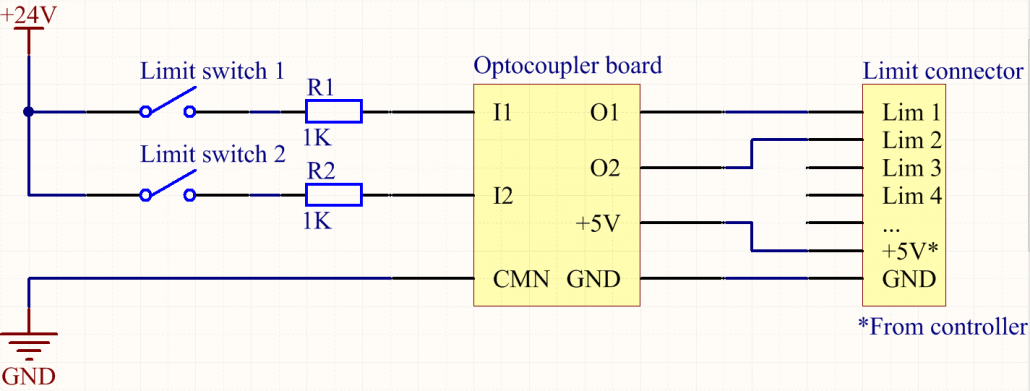
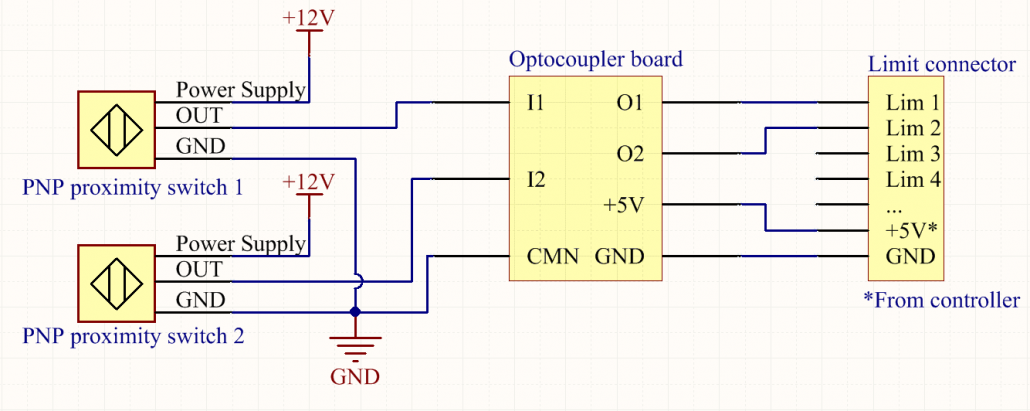
Bottom wiring diagrams demonstrate various uses of adapter with optocoupler:

Optoisolated axis output:

OptoAxisBoard

Optoisolated limit switch inputs:

OptoLimitBoard

OptoLimitBoard24V

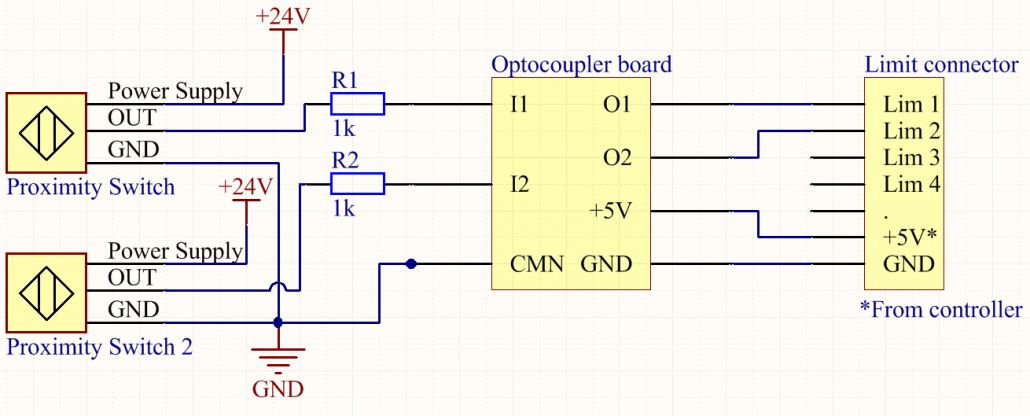
Using PNP proximity switches with optocoupler adapter:

With 12V power supply:
OptoProximityBoard12V

With 24V power supply:
OptoProximityBoard24V

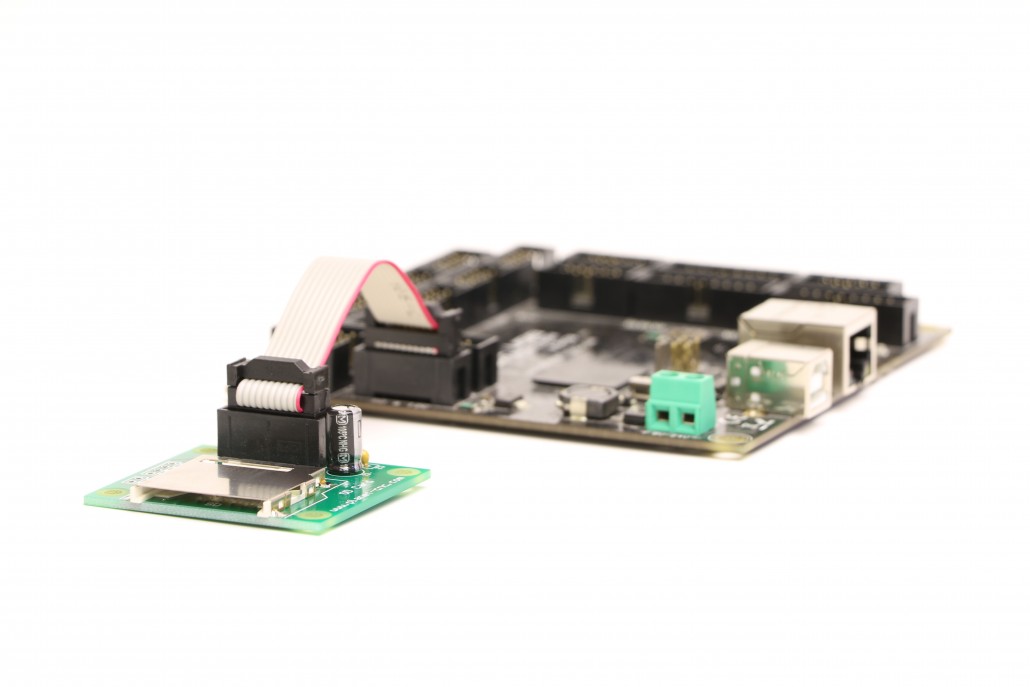
Using SD card adapter with PlanetCNC controllers

Banner2

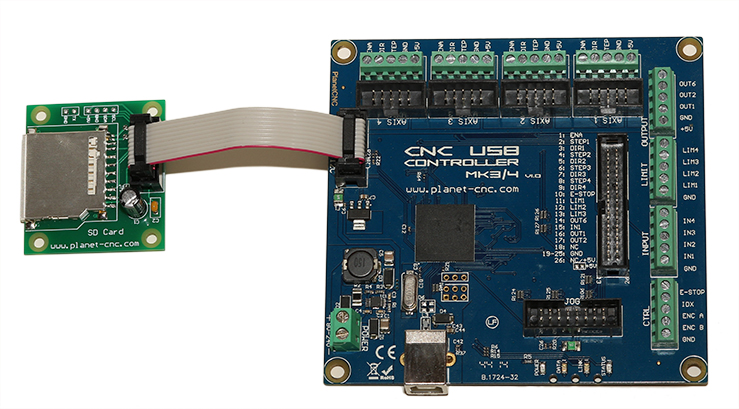
Connect SD card adapter with the Planet-CNC controller:

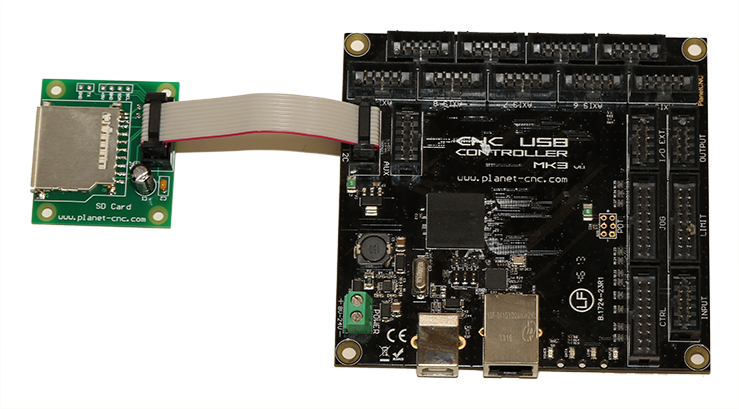
Mk3 and Mk3/4 controller:
SD card adapter is connected to Mk3 and Mk3/4 controller with 10pin flat cable trough SD&I2C connector.
Mk34LatestSmall

Mk3LatestSmall

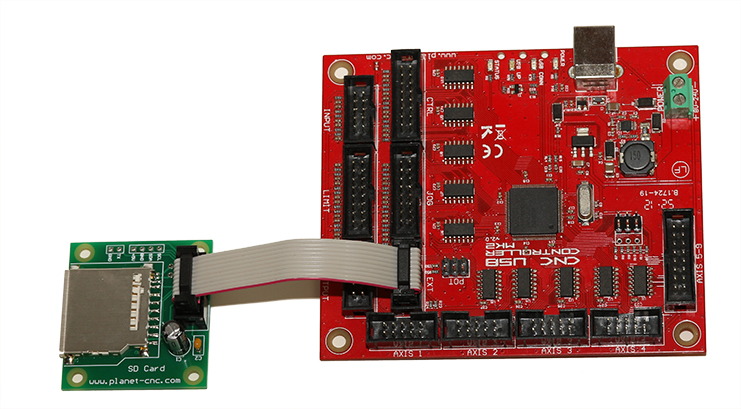
Mk2 controller:
SD card adapter is connected to Mk2 controller with 10pin flat cable trough EXT connector.
Mk2LatestSmall


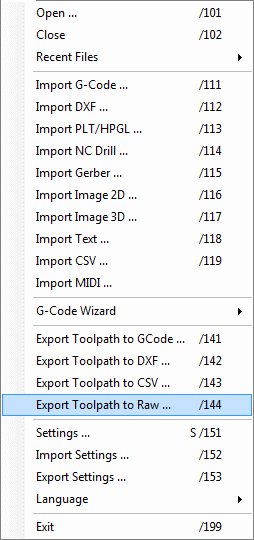
Export your toolpath to Raw file format in CNCUSB controller software: “File/Export Toolpath to Raw”:

ExportRawMenu

Raw file must be named “toolpath.raw” and must be located on SD cards root folder.


Program Execution:

You can start the execution of your program from SD card:
“Machine/Start from SD card”

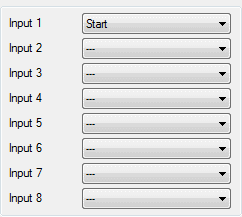
If you do not intend to use computer, you can connect a switch to desired input, assigned it as “Start” switch in software and start the execution of the program without the use of computer.

In settings you set input as ‘Start’ switch:

Mk3 and Mk3/4:
File/Settings/Input

Mk3Start

Mk2:
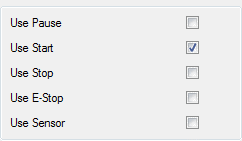
File/Settings/Input/Use Start
Mk2Start

NOTES:

When running your program from SD card, the initial starting point of machining is always machines absolute XY=0 position.

It is important that the version of controller(Mk2, Mk3..) connected to computer when you export your toolpath to RAW format is the same as the one that will be later executing program from SD card adapter.

When you use controller in standalone option (no computer and no power supply via USB) it is necessary to use external power supply. Normal 8-24VDC adapter is suitable.

Mk2 requires jumper “JMP” to be short circuited (soldered) while Mk3 and Mk3/4 do not need this jumper to be short circuited.

Same settings need to be used when exporting toolpath(RAW file) and when updating controllers firmware (same settings need to be loaded into software).

Using output board with PlanetCNC controllers

Banner

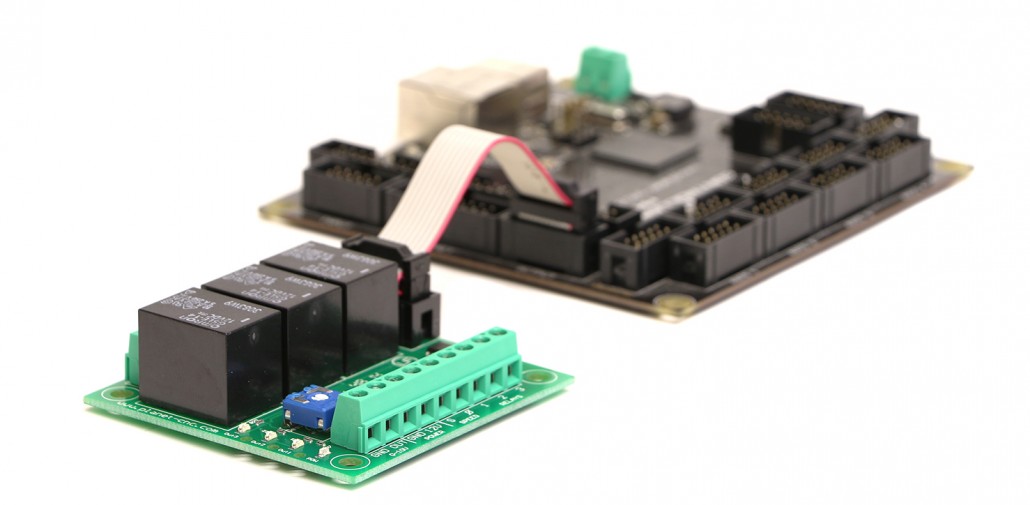
Output board is used for control of external equipment such as VFDs, coolant systems, vacuum pumps etc.

It requires 12V power supply connected to a terminal labeled 12V (be careful with the polarity). Output board has 3 relays and 0-10V output. Relays can be used as NO (normally open) or NC (normally closed).

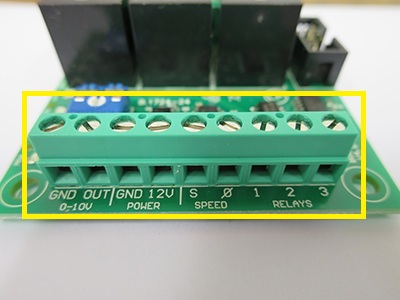
Output board can be connected with controller via 10pin IDC header or screw type terminals labeled “S”, “0”, “1”, “2” and “3”.


1. Output board connector description:

IDC header:

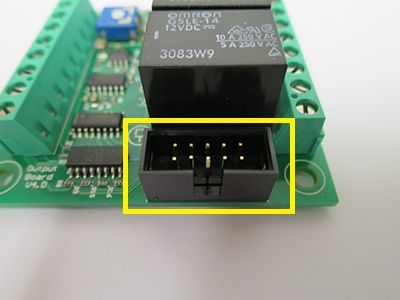
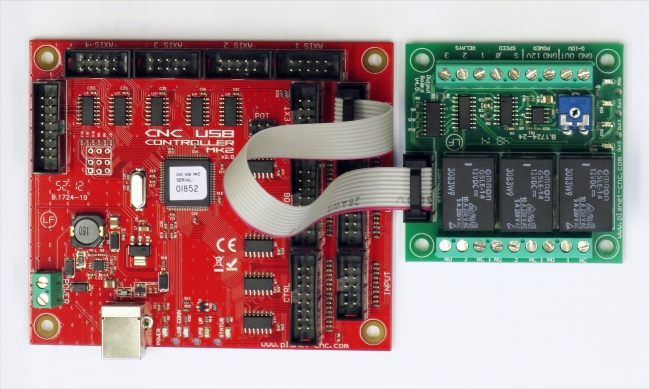
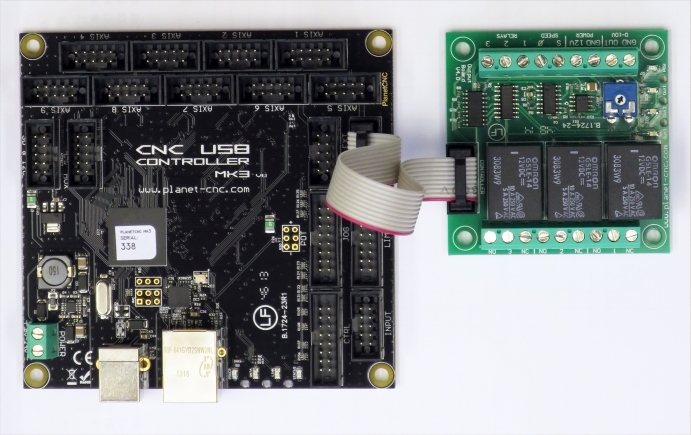
This IDC connector is used to connect output board with controller via 10pin ribbon cable (For Mk2 and Mk3).
IDC_resized
Pin 5 of this connector activates relay 1.
Pin 4 of this connector activates relay 2.
Pin 3 of this connector activates relay 3.
Pin 6 of this connector controls 0-10V output.

Control input terminals:

This screw type connector is used for connection with Mk2/4, Mk3/4 or Mk3DRV controllers(or some other external devices) with output board:
Control_Inputs_resized

[0-10V; GND, OUT] → to connect variable voltage output with VFD, output

[POWER; GND, 12V] → to connect power supply (12V DC, at least 200mA ), input

[SPEED; S, 0] → to connect varying frequency signal from controller or some other external device, input

S: Frequency signal input from Mk2/4 or Mk3/4 or other external device

0: GND from controller

[RELAYS; 1, 2 , 3] → Control signal input for SPINDLE, MIST or FLOOD from controller (or other external device), input
Input 1 controls relay labelled 1
Input 2 controls relay labelled 2
Input 3 controls relay labelled 3

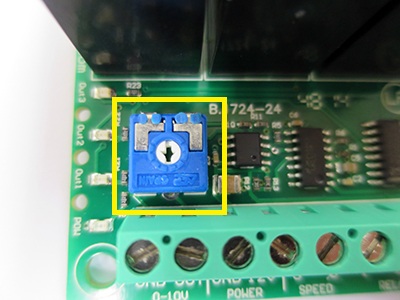
Trimmer:

This trimmer is used for calibrating the 0-10V output:
Trimm_resized

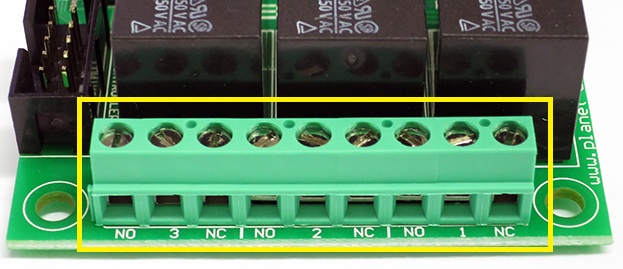
Relay output terminals:

These are relay connectors. They are used for connection of the controlled device:
RelayConnector

NO- normally open contact of relay
NC- normally closed contact of relay
1 – common movable contact of the first relay
2 – common movable contact of the second relay
3 – common movable contact of the third relay


2. Output board and controller connection:
Mk2 and Mk3:

These two controllers use 10pin IDC connector, which makes the connection of controller and output board very easy.

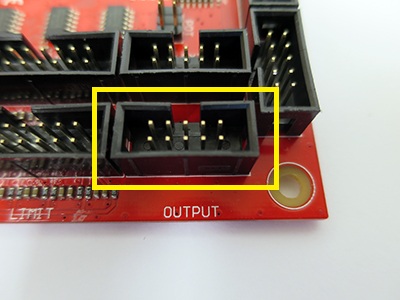
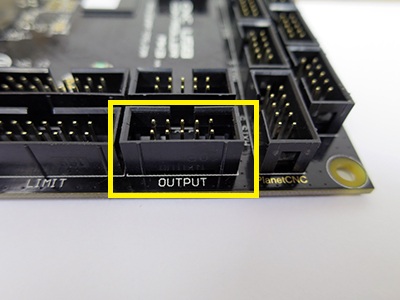
Mk2 output connector:
Mk2_out_resized

Mk3 output connector:
Mk3_out_resized

Mk2 connection:
Mk2resized

Mk3 connection:
Mk3resized


Mk2/4,Mk3/4 and Mk3DRV:

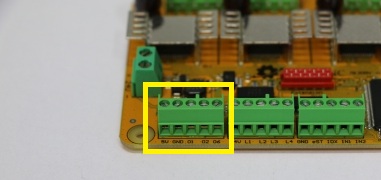
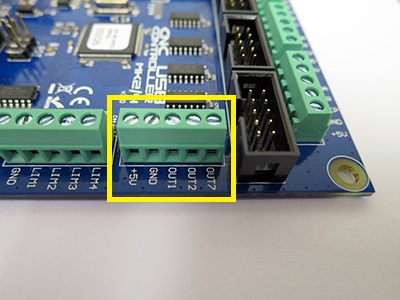
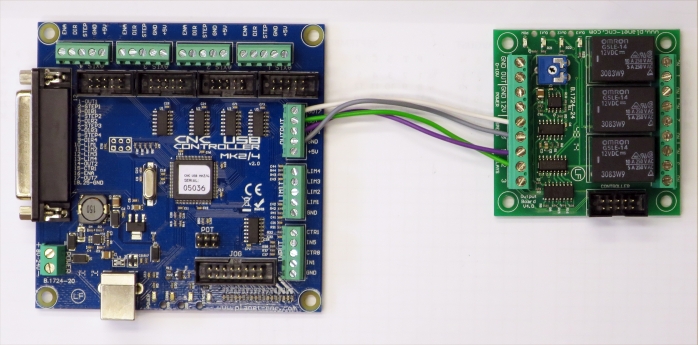
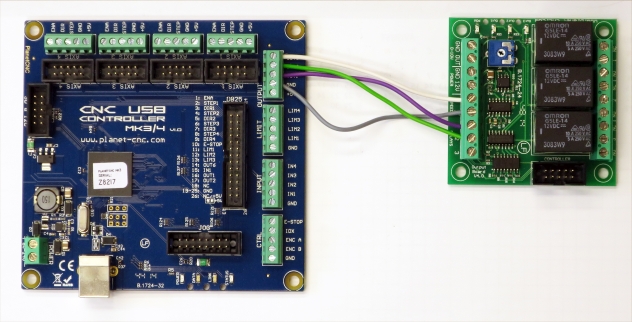
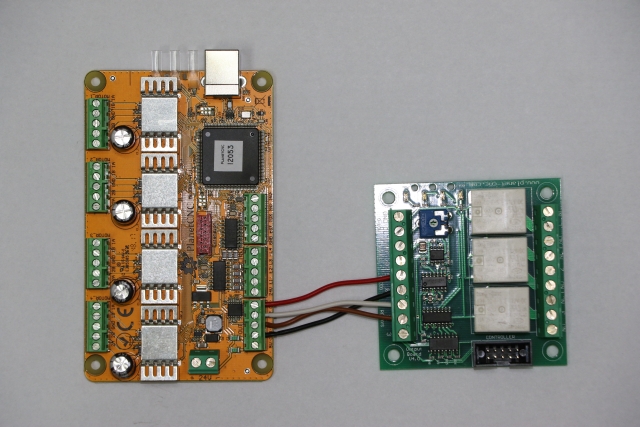
These controllers use screw type connectors so you will need to use single wires to connect controller with output board. To know which output pin from controller is connected to which input of output board, please refer to tutorial in Step 1.

Mk3DRV output connector:


Mk3/4 output connector:
Mk34_out_resized

Mk2/4 output connector:
Mk24_out_resized

Mk2/4 connection:
Mk24resized

Mk3/4 connection:
Mk34resized

MK3DRV connection:


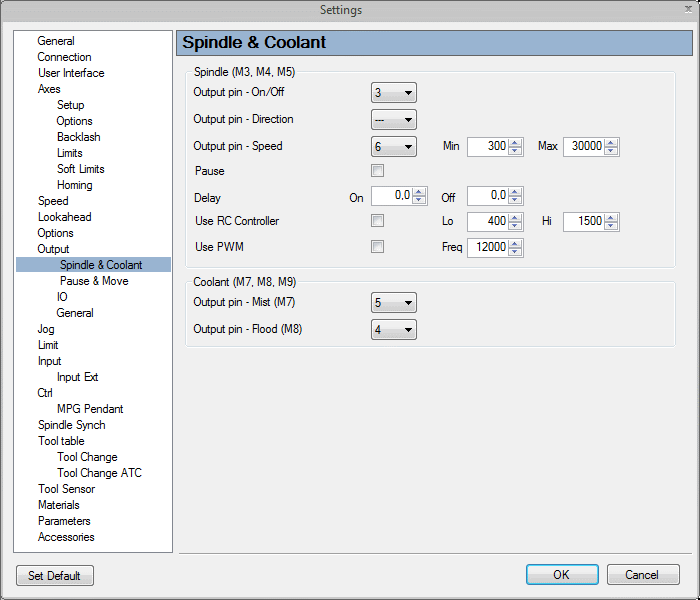
3. Configuring controllers output pins in PlanetCNC TNG software:

For Mk3 controller:

Connect Mk3 controller with output board like described above (connection for Mk3 and Mk2).

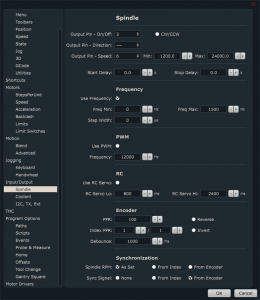
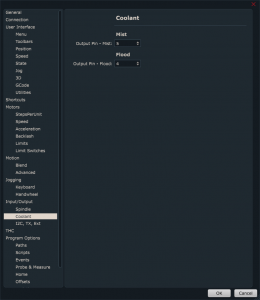
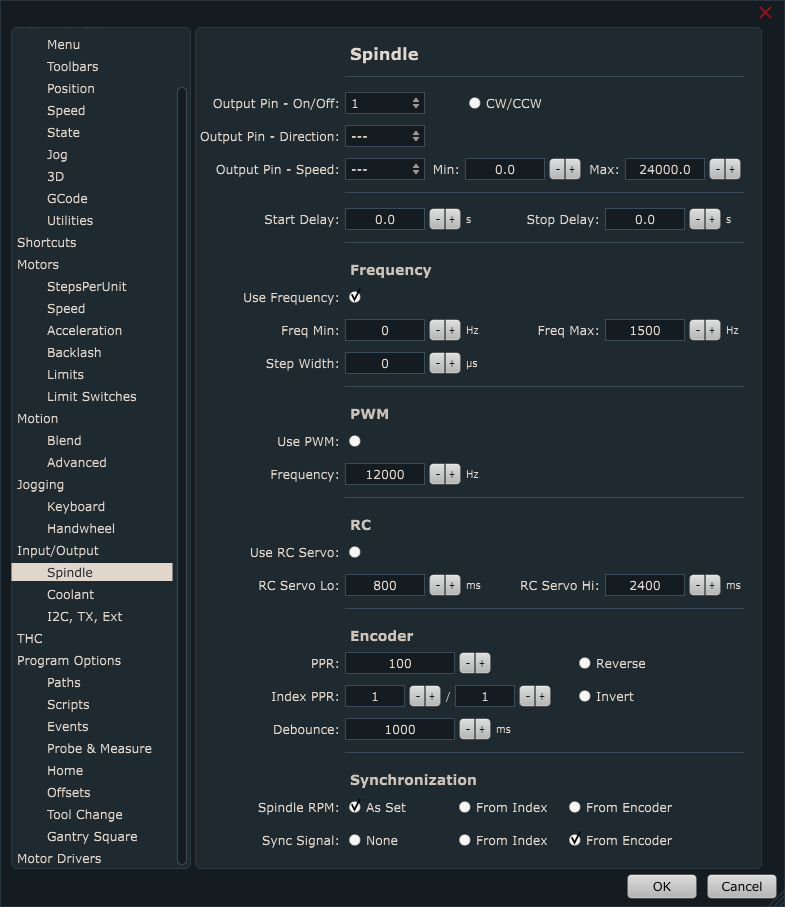
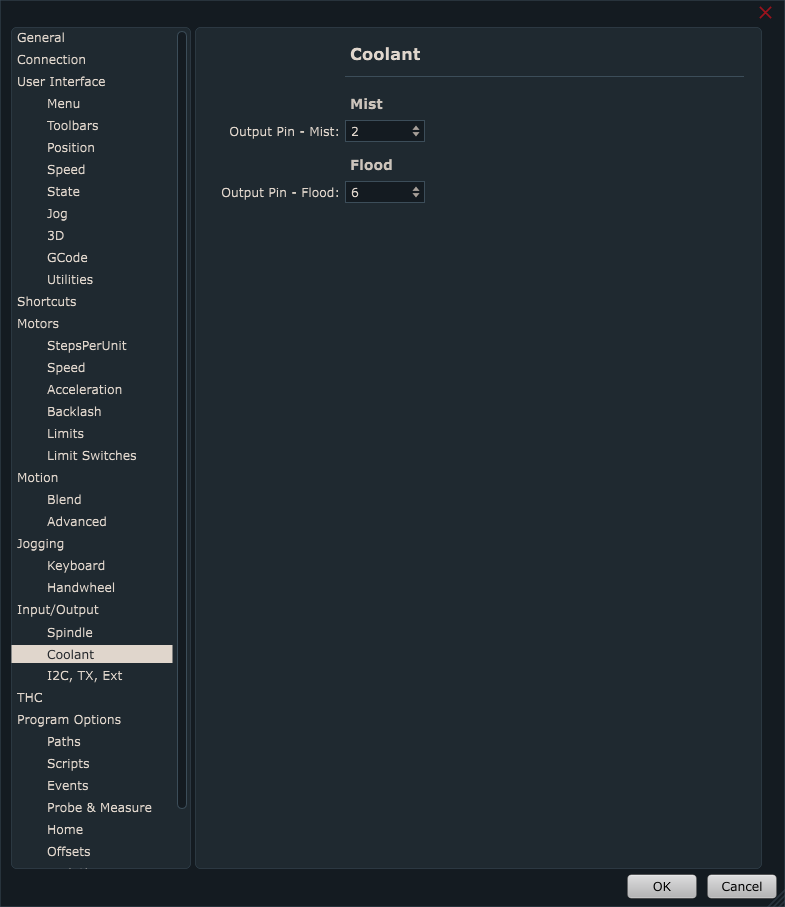
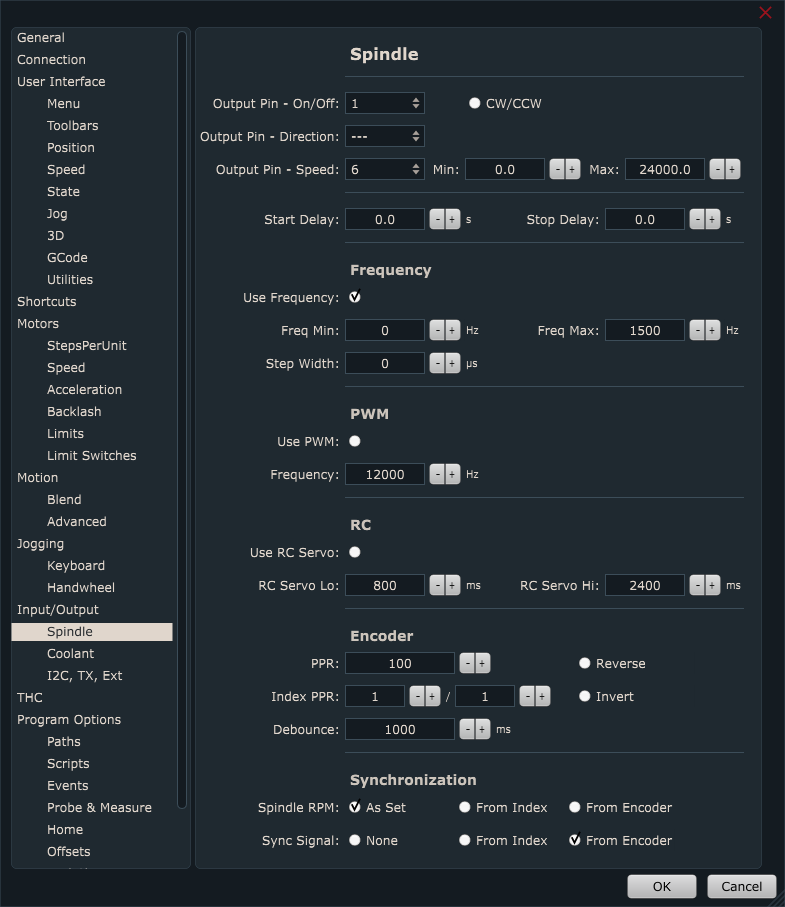
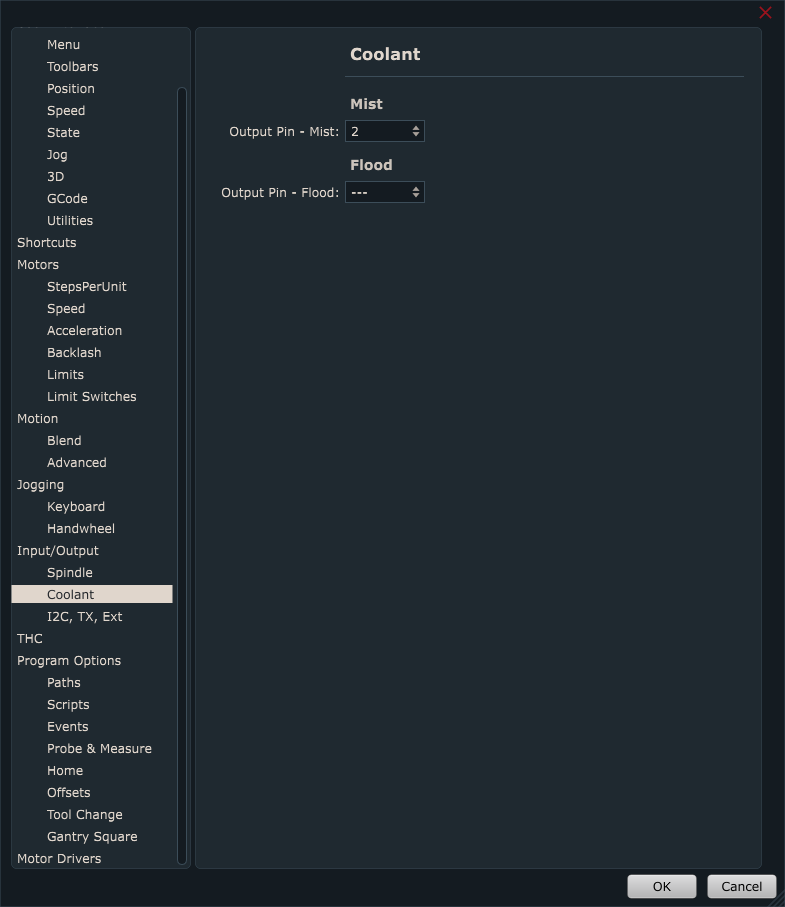
Set settings like this:

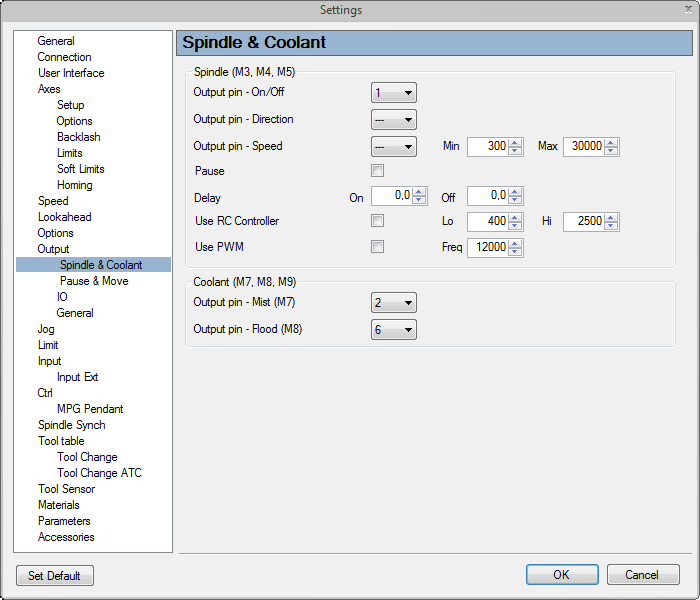
For Mk3/4 and MK3DRV controllers:

Connect Mk3/4 or Mk3DRV controller with single wires to screw terminals.

If you want to use 3 relays without the 0-10VDC output, connect output board terminals to controller like this:
“S” – not connected
“0” – GND
“1” – OUTPUT1
“2” – OUTPUT2
“3” – OUTPUT6

Set settings like this:


If you want to use 2 relays and 0-10VDC output, connect output board terminals to controller like this:

“S” – OUTPUT6
“0” – GND
“1” – OUTPUT1
“2” – OUTPUT2
“3” – not connected

Set settings like this:

4. Configuring controllers output pins in CNC USB controller software:

For Mk2 and Mk3 controller:

Connect Mk3/Mk2 controller with output board.Do not connect terminals labeled “S”, “0”, “1”, “2” and “3”.

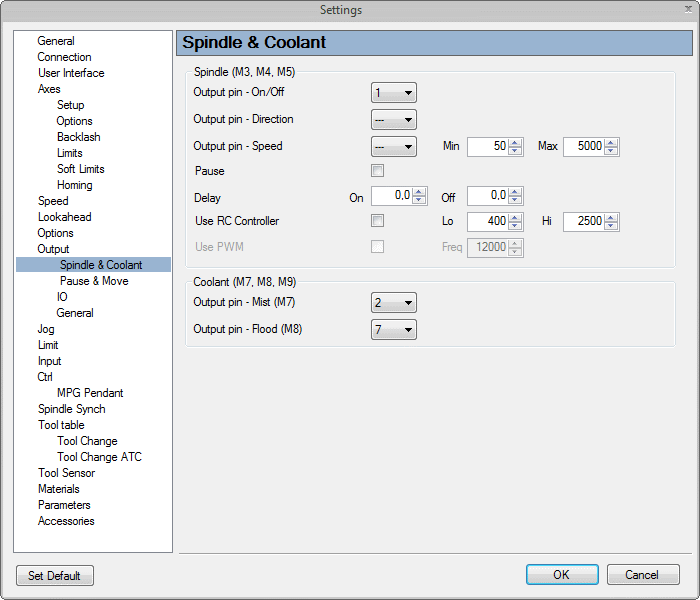
Set settings like this:
outputMk2

For Mk3/4 controller:

Connect Mk3/4 controller with wires to screw terminals.

If you use 3 relays connect output board terminals to controller like this:
“S” – not connected
“0” – GND
“1” – OUTPUT1
“2” – OUTPUT2
“3” – OUTPUT6

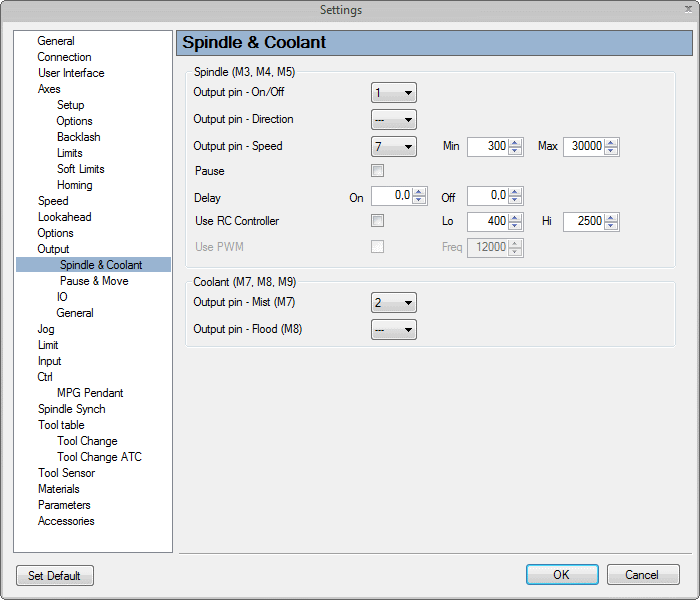
Set settings like this:
outputMk34a

If you use 2 relays and 0-10V connect output board terminals to controller like this:

“S” – OUTPUT6
“0” – GND
“1” – OUTPUT1
“2” – OUTPUT2
“3” – not connected

Set settings like this:
outputMk34b


For Mk2/4 controller:

Connect Mk2/4 controller with wires to screw terminals.
If you use 3 relays connect output board terminals to controller like this:

“S” – not connected
“0” – GND
“1” – OUTPUT1
“2” – OUTPUT2
“3” – OUTPUT7

Set settings like this:
outputMk24a

If you use 2 relays and 0-10V connect output board terminals to controller like this:

“S” – OUTPUT7
“0” – GND
“1” – OUTPUT1
“2” – OUTPUT2
“3” – not connected

Set settings like this:
outputMk24b

Using EggBot with PlanetCNC controller and Toslink

In spirit of Easter holidays(with a slight delay) we decided to wipe the dust from our EggBot and see if still works. We thought that it would be perfect if we use Toslink devices to demonstrate how both, Mk3 controller and Toslink work perfectly hand in hand.


For better understanding of Toslink please follow link below:

http://irnas.eu/goodenoughcnc/2016/03/10/toslink-cnc


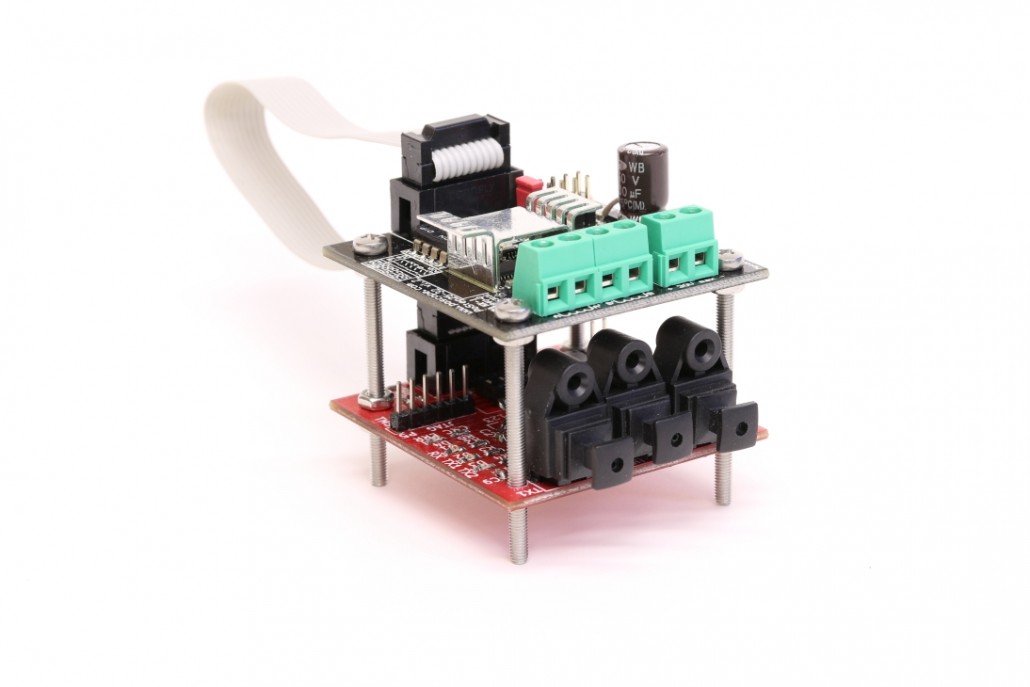
Toslink can be integrated with a small stepper driver by just being stacked with motor driver and connected via flat ribbon cable:

Toslink Driver - Copy


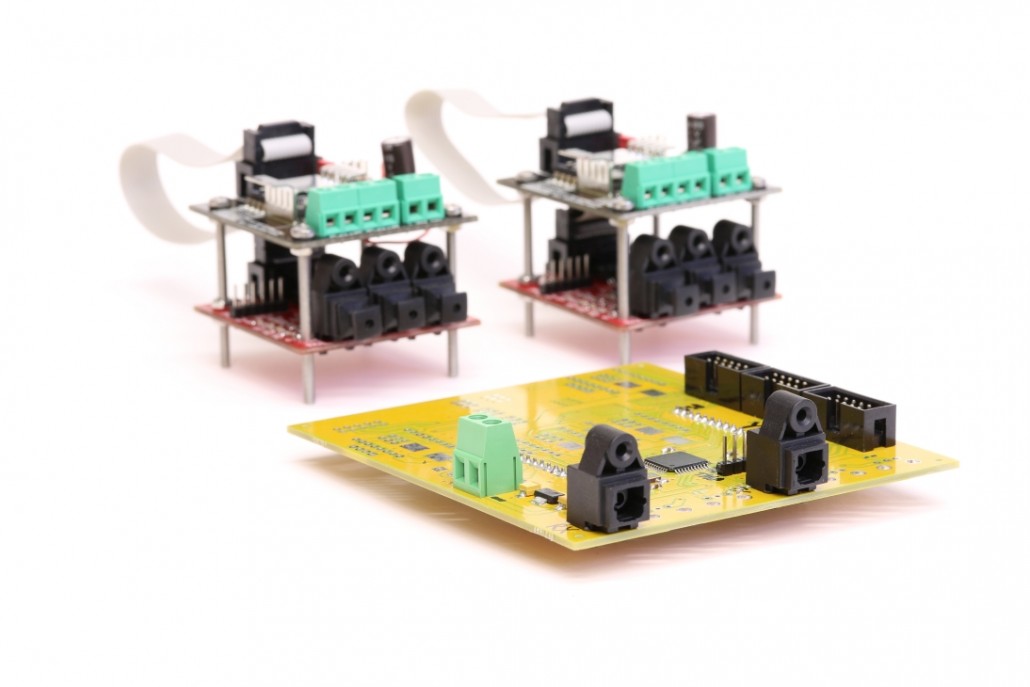
Master Toslink board sends coded optical signal to all Toslink slave devices:

Master Toslink - Copy


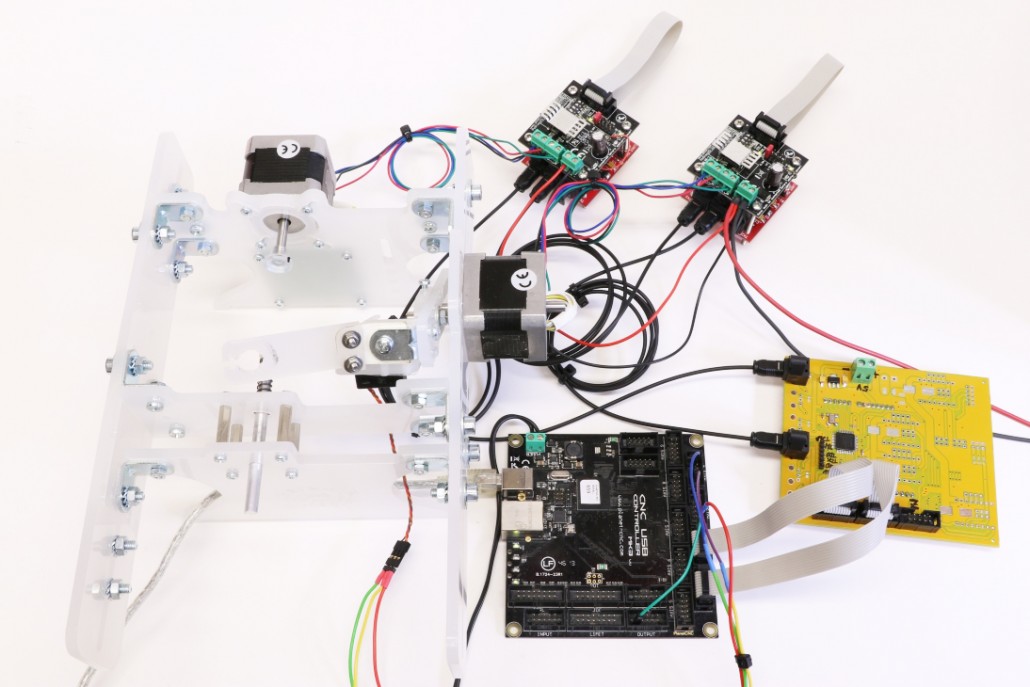
Controller is connected with Toslink master board which is connected with Toslink devices via optic fibre cable:

Complete

Here is a short video showing Mk3 controller, Toslink and EggBot in action.


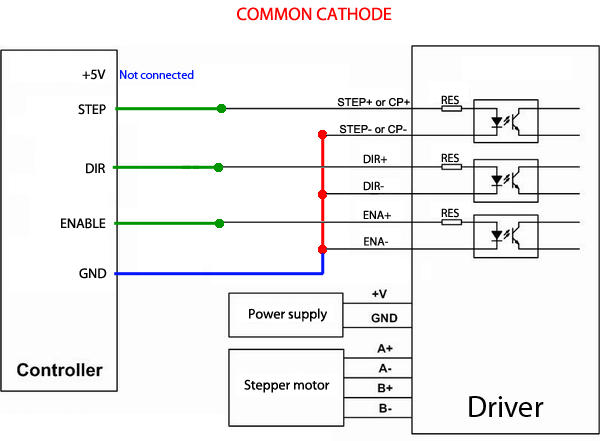
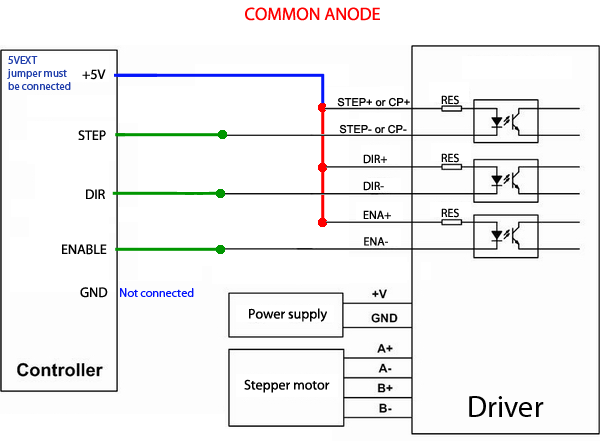
How to connect motor driver with optoisolated inputs

HOW TO CONNECT MOTOR DRIVER WITH OPTOISOLATED INPUTS?

There are two possible connections:

1. Common cathode
opto_common-cathode

2. Common anode
opto_common-anode

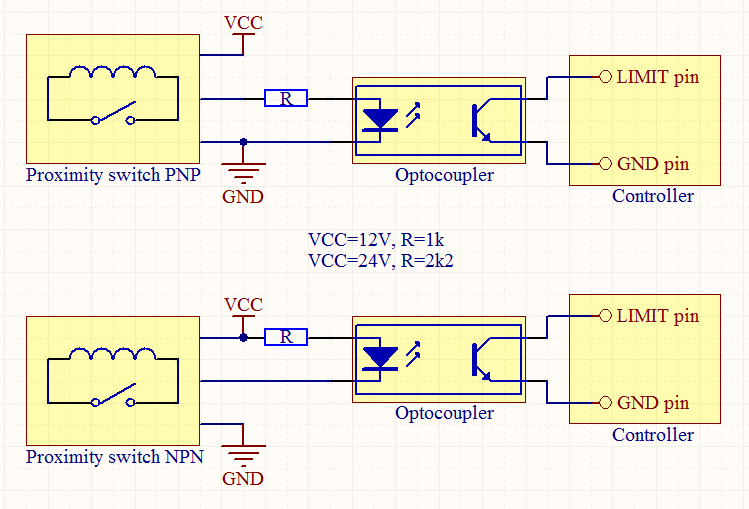
How to connect proximity switch as limit switch?

HOW TO CONNECT PROXIMITY SWITCH AS LIMIT SWITCH USING OPTOCOUPLER?

There are two types of switches – PNP (3002PA, 3002PB, …) and NPN (3002NA, 3002NB, …)

proximity


Switches are also categorized as NC – normaly closed (3002PB, 3002NB, …) and NO – normaly open (3002PA, 3002NA, …).
For NC switches enable “Invert Limit” in software settings, for NO switches disable this setting.


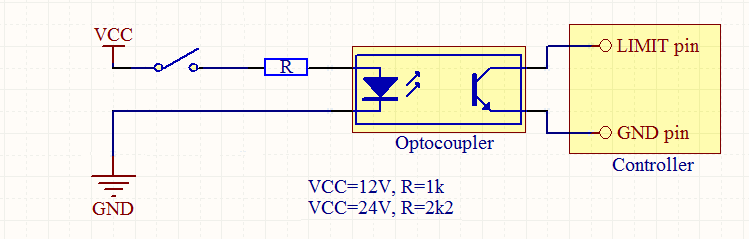
You can connect ordinary switch with optocoupler like this:

switch

How can I update firmware?

HOW TO UPDATE CNC USB CONTROLLER FIRMWARE

Firmware can be easily updated through menu options.

Connect controller and start software
Select menu option “Machine/Firmware/Update”
Wait around 10 seconds

If there is something wrong and you receive “Firmware update FAILED” message just repeat procedure.

You can check your software and firmware version with menu option “Help/About”.

Manual bootloader mode for Mk1

If you have older version of firmware or if you constantly get “Firmware update FAILED” or “Not in firmware mode” message then you must put controller into firmware bootloader mode manualy:

1. Connect controller to computer with USB cable.
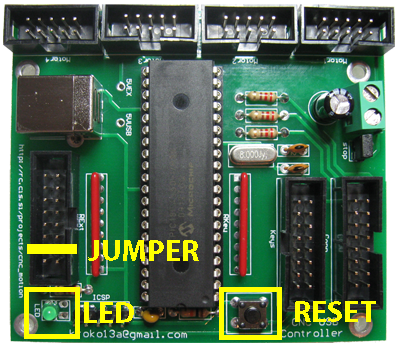
Controller has blinking LED which indicates that controller is working properly.

2. Press and hold “reset” button (or disconnect power) and place jumper or create shortcut on “Jog8” pin (this is between RB4 and VCC)).
This it second pin from right – see image. If you have jogging keys connected to controller you can press and hold “Jog8” button.

firmwareMk1

3. Release “reset” button (or connect power), wait a moment and the remove “Jog8” jumper shortcut.
If everything is OK then LED will start blinking very quickly. If LED is not blinking very quickly controller is not in bootloader mode and you need to start again.

5. Now you can upgrade firmware through menu options as described at begginning.

Manual bootloader mode for Mk2

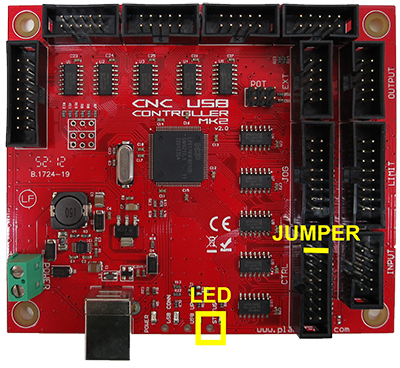
1. Disconnect controller from USB and power.

2. Place jumper or create shortcut between CTRL pin 8 and GND – see image.

firmwareMk2

3. Connect power and USB cable.
If everything is OK then LED will start blinking very quickly. If LED is not blinking very quickly controller is not in bootloader mode and you need to start again.

4. Remove jumper or shortcut from CTRL pin 8.

5. Now you can upgrade firmware through menu options as described at begginning.

Manual bootloader mode for Mk2/4

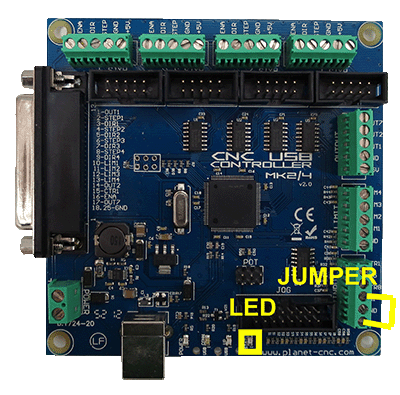
1. Disconnect controller from USB and power.

2. Connect CTR8 terminal to GND – see image.

firmwareMk24

3. Connect power and USB cable.
If everything is OK then LED will start blinking very quickly. If LED is not blinking very quickly controller is not in bootloader mode and you need to start again.

4. Remove CTR8 – GND connection.

5. Now you can upgrade firmware through menu options as described at begginning.

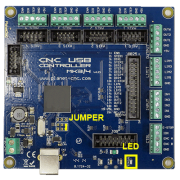
Manual bootloader mode for Mk3/4

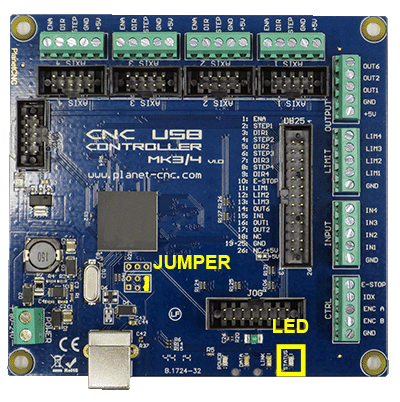
1. Disconnect controller from USB and power.

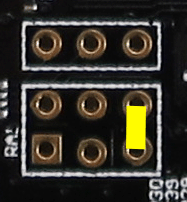
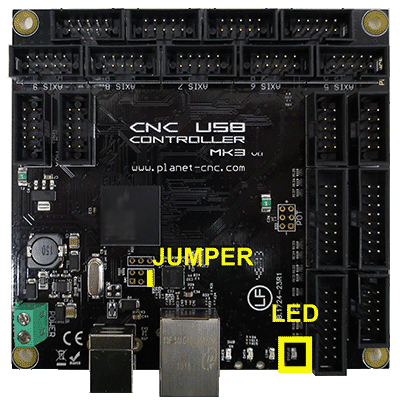
2. Short circuit the two deisgnated pins (yellow rectangle in the picture). We suggest that you use a pair of tweezers for this.

firmwareMk34 Mk3_jumper

3. Connect power and USB cable.
If everything is OK then LED will start blinking very quickly. If LED is not blinking very quickly controller is not in bootloader mode and you need to start again.

4. Remove short circuit.

5. Now you can upgrade firmware through menu options as described at begginning.

Manual bootloader mode for Mk3

1. Disconnect controller from USB and power.

2. Short circuit the two deisgnated pins (yellow rectangle in the picture). We suggest that you use a pair of tweezers for this.
firmwareMk3Mk3_jumper

3. Connect power and USB cable.
If everything is OK then LED will start blinking very quickly. If LED is not blinking very quickly controller is not in bootloader mode and you need to start again.

4. Remove short circuit.

5. Now you can upgrade firmware through menu options as described at begginning.