Using G02 and G03 g-codes with PlanetCNC TNG software

Another two g-codes used to specify machine movements are G02 and G03. They move the machine in an arc, in contrast to G00 and G01 which move the machine in a straight line.

G02 moves the machine in a clockwise arc and G03 moves the machine in a counterclockwise arc.
To use these codes we need to specify the coordinates to which the machine will travel, the offsets to the center of the arc or the arc radius and optionally the number of additional turns the machine will make while performing the move. The speed of these movements is also defined by the F-word (feed rate).

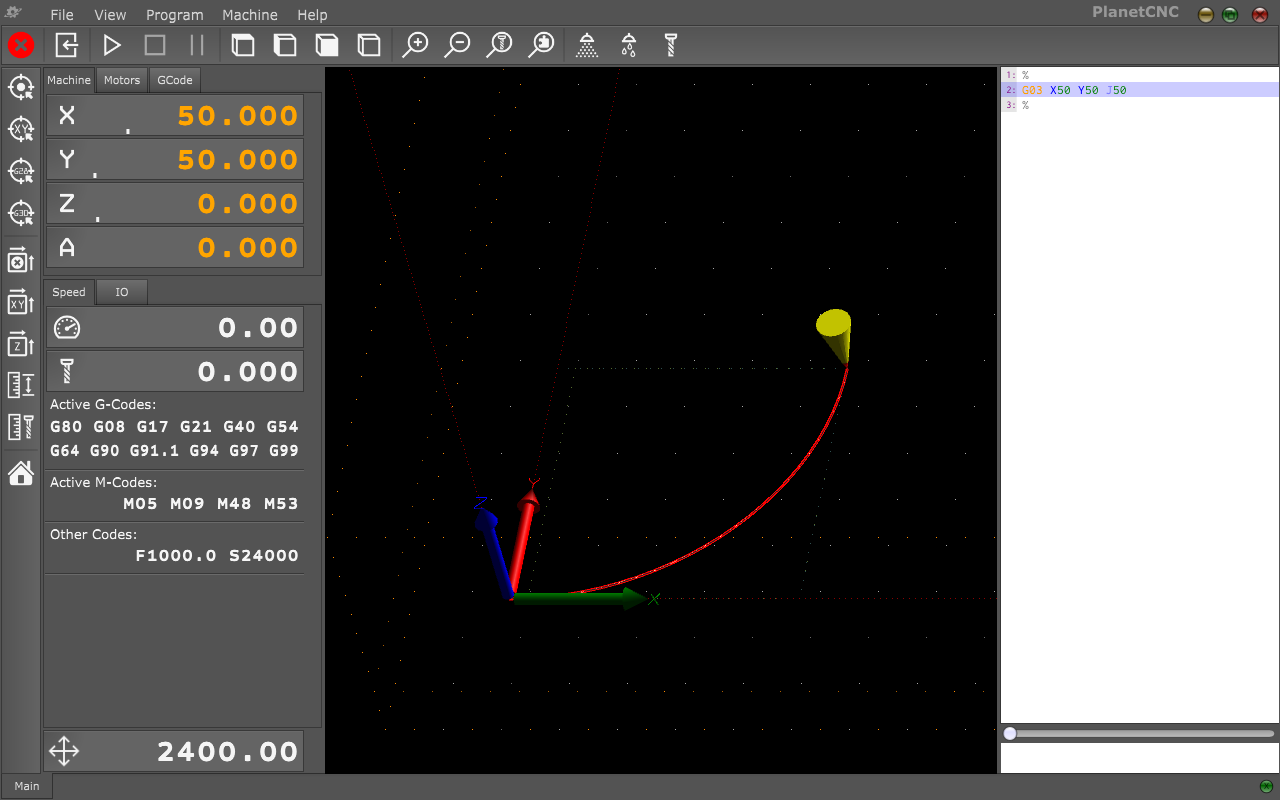
For example: Starting from X0 Y0 Z0, we would like to round a 90 degree corner using a counterclockwise arc to X50 Y50 Z0. To do this we will use the command G03 X50 Y50. But this command isn’t complete yet and the program would signal an error if we tried to use it like that. We still need to specify the center of the arc. This is done by specifying offsets from the starting position or with the deprecated method of specifying the radius.

The offsets are simply the distance from the starting position to the center of the arc. The offsets are separated into components for each axis. The center also needs to be equidistant from both the starting and the destination point. Otherwise the arc won’t be part of a circle and the controller will signal an error accordingly.

As we said, the offsets are the distance the machine would need to move along each axis separately to get to the center. In our case (starting from the origin) this would be 50 units along the Y axis. This also means that the radius of the circle will be 50 units (the radius equals the distance from the center to the origin or destination). Now we need to specify the offsets to the machine. To do this we use I, J and K-words for the X, Y and Z axes accordingly. When we put all this together we get the final code that looks like this: G03 X50 Y50 J50.
G03

Using spindle and coolant g-codes with PlanetCNC TNG software

A fundamental operation in CNC machining is controlling the spindle. It is controlled in g-code using M3, M4 and M5 commands.
M03 will start the spindle turning clockwise.
M04 will start the spindle turning counterclockwise.
Both commands turn on the spindle at the speed determined separately by the S-word. It is used to set the RPM at which the spindle will turn when turned on.
M05 will stop the spindle regardless of direction.

Other than controlling the spindle, the M03 command can also turn on a plasma cutter, laser, water jet or even a hot wire for cutting polystyrene foam. Their power is likewise set using the S-word.

When machining some materials, most often metals, it is sometimes required to use coolant. It can be supplied to the tool and on the work in different ways. There are three commands for coolant control.
M07 will turn on the mist coolant supply.
M08 will turn on the flood coolant supply.
M09 will turn both coolant supplies off.

As with M03, these commands can be used to control something else, as they just turn an output on the CNC USB controller on or off. For example one of the codes could be used to control the dust collection vacuum for a woodworking machine.

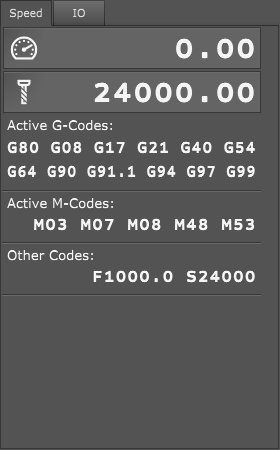
The M07, M08 and M03 commands can also be activated manually using the buttons from top toolbar:
CoolantFlood CoolantMist SpindleM3


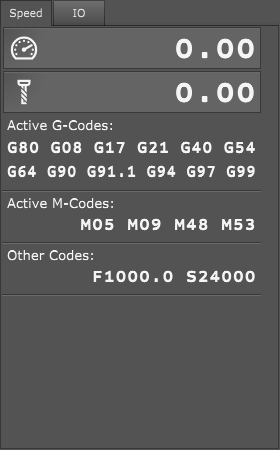
Currently active M-codes will also show up in the machine state display.

M03M07M08M05M09

Using G00 and G01 g-codes with PlanetCNC TNG software

When it comes to g-codes that specify machine motion we need to mention G00 and G01.
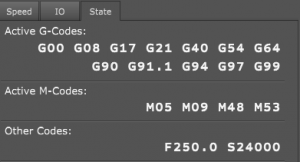
G00 or also known as rapid or traverse move. G00 command is usually used for moves when machine travels from position to position above the material and when no cutting is applied.
When G00 command is stated we also need to specify in which direction move will occur. For example: G00 X100 Y50
Speed at which this move will be executed is usually maximum speed of machine.

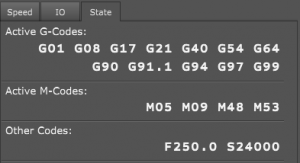
G01 command activates linear motion of machine. We use G01 with moves when machine is moving tool trough material and therefore applying various types of cutting.
Normally speed of G01 move is set with F-word(distance/time). In this case F stands for feed rate, which specifies speed in mm/min or inch/min.
When G01 command is stated we also need to specify in which direction move will occur. For example: G00 X10 Y5 F1000

g00

g00g01

Using “Optional Pause” feature with PlanetCNC TNG software

PlanetCNC TNG software supports, next to the conventional M00 pause, also optional M01 pause.

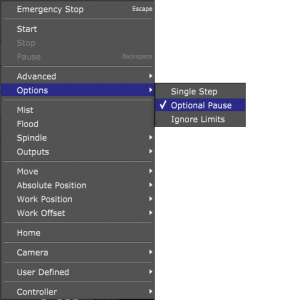
While M00 command pauses program every time when it appears in program, M01 pauses program only when “Optional pause” option is enabled in machine menu: Machine/Options/Optional pause
optionalpause_menu

You can enable/disable optional pause while program is running, so you would not need to restart the program in order to use optional pause feature.

Example:
You can insert M01 optional pause at different locations in your program.
So when you run your program for the first time, you can have these pause checkpoints in-between, where you can check up on machine or machining parameters, measure your work piece or tool wear, check fixture position etc..

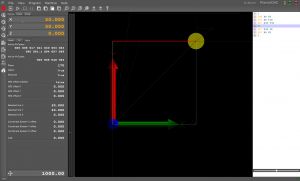
Optional pause disabled:
optionalpause_disabled

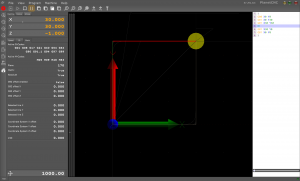
Optional pause enabled:
optionalpause_enabled

You can download “Optional pause” example program here: Optional pause example

Using “Block Delete” feature with PlanetCNC TNG software

This feature comes useful when you need to test proof your program or if you have two versions of the same workpiece with minor changes etc…
In such case you can use “Block delete” feature which allows you to skip or execute marked lines of g-code of your program.

Block delete feature executes or skips lines of program that have character “/” at the beginning of the program line:
blockdelete_g-code

Example:
Lets say we would like to create two half’s of one part. For first half we would like to mill the cutout and holes, while for other we would like to create also pockets for screw heads.

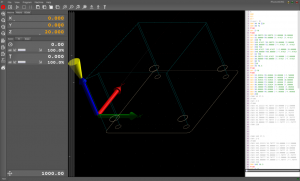
Bottom screenshots display the same program file, with Block delete option disabled in first case and Block delete option enabled in second case:

With “Block delete” disabled:

blockdelete_disabled

With “Block delete” enabled:
blockdelete_enabled

You can see how quickly we can get two versions of the same file using this feature.

You can download “Block Delete” example program here: Block delete example